
Today, we are going to combine or concatenate two or more texts together. Let’s start with creating full names. It is a simple example with two texts. We can use the CONCATENATE function, or, if you have Excel 2019 or a newer one, you can just use the CONCAT function which combines two text ranges. The CONCATENATE function cannot combine ranges, only single cells. However, in our example, it doesn’t matter because when we combine the first name and the last name, in reality, we want to combine three texts as there is a delimiter between the first and last name. That’s why we have to add, let’s say, a space. The space should be in double quotes because it is a text (Fig. 1).
=CONCATENATE(A2,” “,B2)

After entering and copying it down, we have full names (Fig. 2).

If you don’t like using the function, you can use the ampersand sign (&) to combine texts. However, while using the sign, it is important to put the sign between each point of connection. It means that the & sign must be placed between the first cell address and the space, and between the space and another cell address (Fig. 3)
=A2&” “&B2

After entering the formula, we have the same results as after using a function (Fig. 4). It is up to you which one you choose.

In our second example, we want to combine more than one text together, i.e., the first, middle and last name. We will use the CONCATENATE function once more, but this time we are clicking on the insert function command near the formula bar and we can see that a Function Argument window appeared. In the window, we have argument/text boxes where we will write our text. We can choose a text from a cell (press Tab). In the Text2 bar, we can write a space. When we press the Tab key, Excel will add double quotes for us. In the Text3 bar there will be cell B2. In the next bar below, we do the same with writing a space. In the last bar, we place cell C2. We can even see our formula result straight in the Function Window (Fig. 5).
=CONCATENATE(A2,” “,B2,” “,C2)

After entering the formula, we have our results (Fig. 6). In this example, using the Insert Function command was quite fast.

I have also prepared one more function that exists from Excel 2019. It is called TEXTJOIN. It can combine text from ranges with the same delimiter. In our case, the delimiter is a space, so we have to write a space in double quotes. Then, we have to decide if we want to ignore empty cells. In most cases yes, so we can write either TRUE or 1. Let’s write 1 because it is shorter. Then, we are selecting the text range, which is the cells that we want to join (Fig. 7)
=TEXTJOIN(“ “,1,A2:C2)

After entering the formula and copying it down, we have our results (Fig. 8)

While combining many texts, it is very important to choose proper function. Let’s assume that some people don’t have middle names. In such a case, the TEXTJOIN function will ignore empty cells and will add only one space. However, the CONCATENATE function will leave two spaces. In such a situation we would have to use the IF function to properly address this problem (Fig. 9).
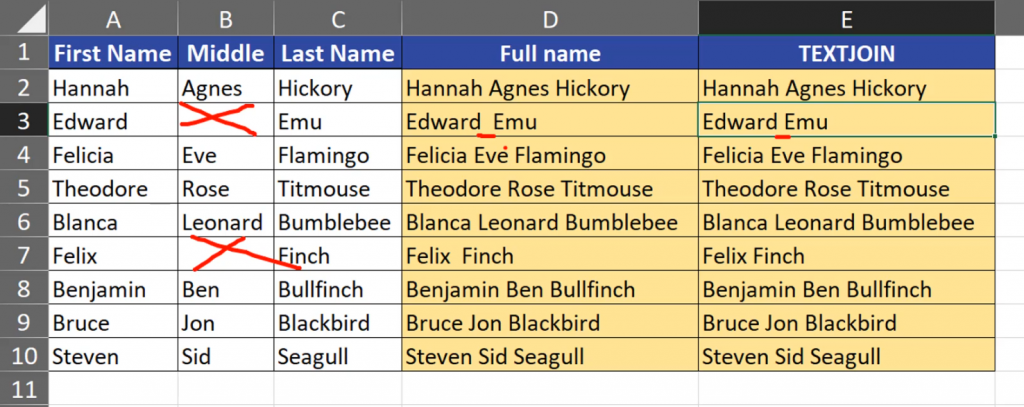
Summing up, we joined the first, middle and last name in each row using the CONCATENATE function that combines more than two texts, and the TEXTJOIN function that combines a range of texts.