Today, we are going to talk about the COUNTA function. This function counts almost everything, It counts formula results (Fig. 1),
COUNTA Function counting almost everythingFig. 1 Formula results
numbers written as text (Fig. 2),
Fig. 2 Numbers written as text
dates and time (Fig. 3),
Fig. 3 Dates and time
logical values (Fig. 4),
Fig. 4 Logical values
numbers (Fig. 5),
Fig. 5 Numbers
and errors (Fig. 6).
Fig. 6 Errors
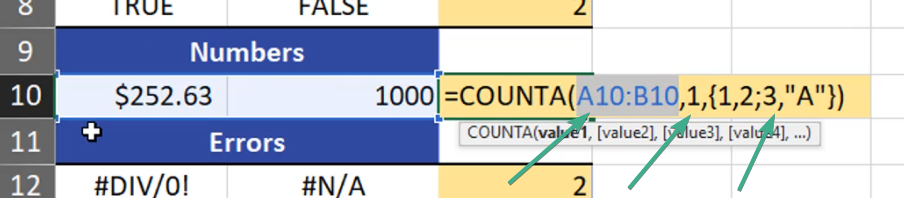
It even counts a single number or value that we put as an argument to COUNTA function (Fig. 7)
Fig. 7 A number put as an argument
Let’s write an array with four elements. It doesn’t matter how many columns of rows this array has, but it’s important how many elements there are. So, we have a range of two cells with numbers, a single value and four elements (Fig. 8).
Fig. 8 A range, a single value and four elements
Since COUNTA function counts every element, it returns 7 (Fig. 9)
Fig. 9 The function returned 7
However, there is one thing that the COUNTA function doesn’t count. It doesn’t cells that are really empty. Cell A14 is really empty, however cell B14 isn’t. It has got a formula that returns an empty text string. COUNTA function counts an empty text string (Fig. 10).
Fig. 10 Empty text string
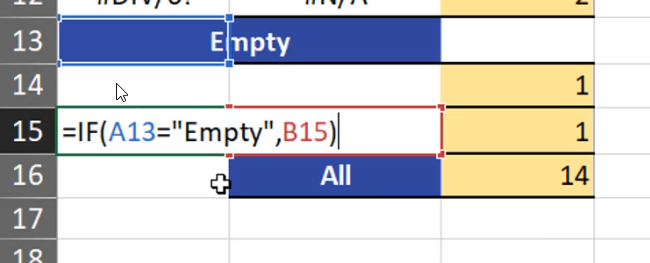
Even if a formula returns a value from an empty cell (B15), the COUNTA function will count cell A15 because it has got a formula (Fig. 11)
Fig. 11 A cell with a formula
The formula in cell B14 was counted by the COUNTA function (Fig. 12)
Fig. 12 A cell with a formula
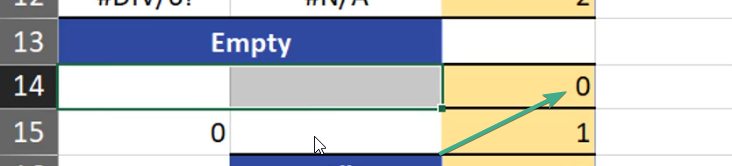
However, if we delete the formula, the COUNTA function will return 0 because cells A14 and B14 are now really empty (Fig. 13)
Fig. 13 Empty cells
Summing up, the COUNTA functions counts everything except for empty cells.
Sometimes, when we have formula results, we want to have only the text, i.e. the answer (Fig. 1).
Paste as values, the Paste Special windowFig. 1 — TRIM function results
We can copy the results, then right click a target cell and choose the Paste Values option from the pop-up menu (Fig. 2).
Fig. 2 — Pop-up menu — Paste values
And, we have just text not formula (Fig. 3).
Fig. 3 — Pasted values (text)
There is one more solution. When we copy our formula, we click on a target cell and press Alt + Ctrl + V combination to show the Paste Special window (Fig. 4). In the Paste area, we click Values, in the Operation area, we choose None, then we press OK.
Fig. 4 — Paste Special window
Now, we have the results only once. We don’t need the extra column, so we must delete it (Fig. 5)
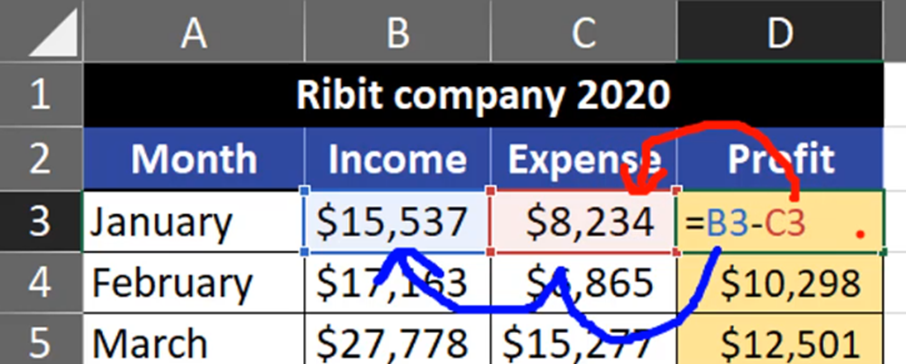
Today, we will discuss relative and absolute references. Let’s start with relative references to count a profit. If you want to count the profit, you just deduct expenses from income (Fig. 1).
Relative and absolute cell referencesFig. 1 — Source data
It means that you subtract the cell C3 value from the value in cell B3 (Fig. 2): =B3 — C3
Fig. 2 — Income minus expenses
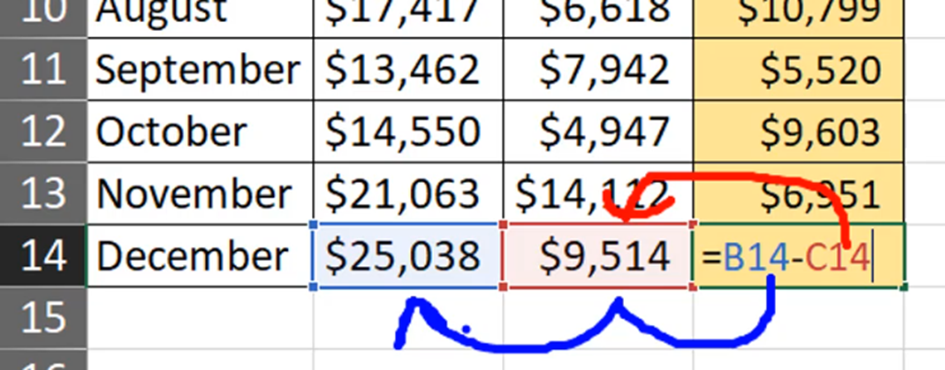
When we copy this formula down, it’s changing because we have different results in different cells. When we look at our formula, it refers to cells B3 and C3. But, in reality, it refers the cells which are one place to the left and two places to the left (Fig. 1). In the last formula (=B14-C14), we can see B14 minus C14 (Fig. 3) but it’s still one cell to the left and two cells to the left. The relative reference is moving with the formula and cell.
Fig. 3 — Formula change after copying down
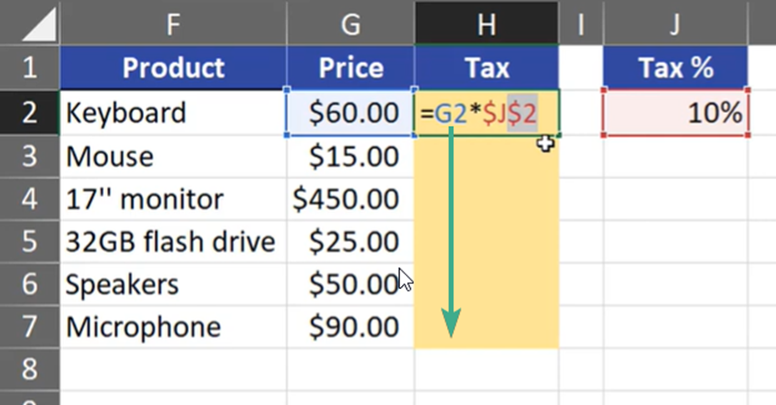
We don’t always want the formula to behave this way. In our second example you can see an absolute reference. We want to count the tax for each product. That’s why we have to multiply the price by our tax. However, we don’t want the tax cell to move, so we must lock cell J2 by pressing F4 key — add two $ signs (Fig. 4):
=G2*$J$2
Fig. 4 Tax calculations
When we copied our formula down, only cell G2 had changed because it’s a relative references. Cell J2 stayed the same and it will not move from this cell (Fig. 5)
Today, we are going to talk about creating charts like data bars in cells using formulas. We want to create something like this (Fig. 1)
Data bars in a cell using character repeatFig. 1 Charts from data bars
Let’s start with creating a proper formula. We have to use the REPT (repeat) function. It will repeat a text, one or more chars, as many times as we write in the second argument. Let’s start with a pipe (a vertical line). We want to repeat it as many times as there are sunny days in a given month. Our formula looks like this (Fig. 2).
=REPT(“|”,B2)
Fig. 2 REPT formula with a pipe
After entering and copying down, we have data bars. However, the distance between individual signs is too big (Fig. 3)
Fig. 3 Data bars with too long distances
We have to narrow it by using, e.g. a different font that works with this sign. We are selecting our data bars and changing the font name to Script (Fig. 4). Now, it looks much better.
Fig. 4 Font change
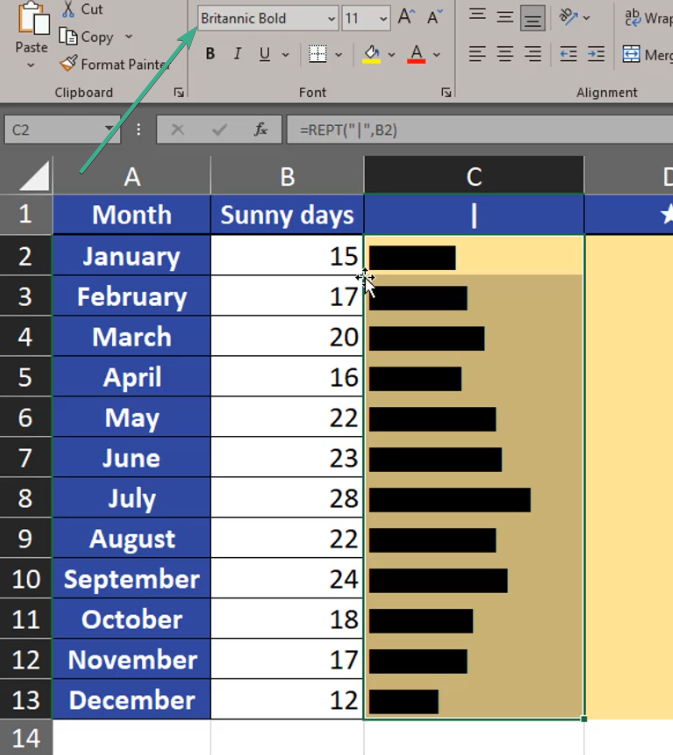
Let’s try, however, a different font. With Britannica Bolt, the signs look like real data bars (Fig. 5).
Fig. 5 Font change again
Let’s take the last example, which is the Haettenschweiler font. In my opinion, it looks the best, so I’m staying with this one (Fig. 6)
Fig. 6 The best font
Apart from repeating a pipe, we can repeat other signs. If they are wider than the pipe and if the number of repeats is too big, we may have a problem (Fig. 7)
=REPT(“*”,B2)
Fig. 7 A formula with an asterisk
We can see, that the asterisk string is too long (Fig. 8)
Fig. 8 Too long
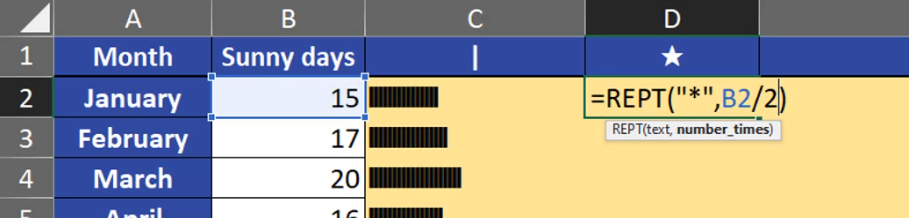
The solution is dividing the number, and the REPT function will only look at the integer part of the number. Let’s divide our numbers safely by two (Fig. 9).
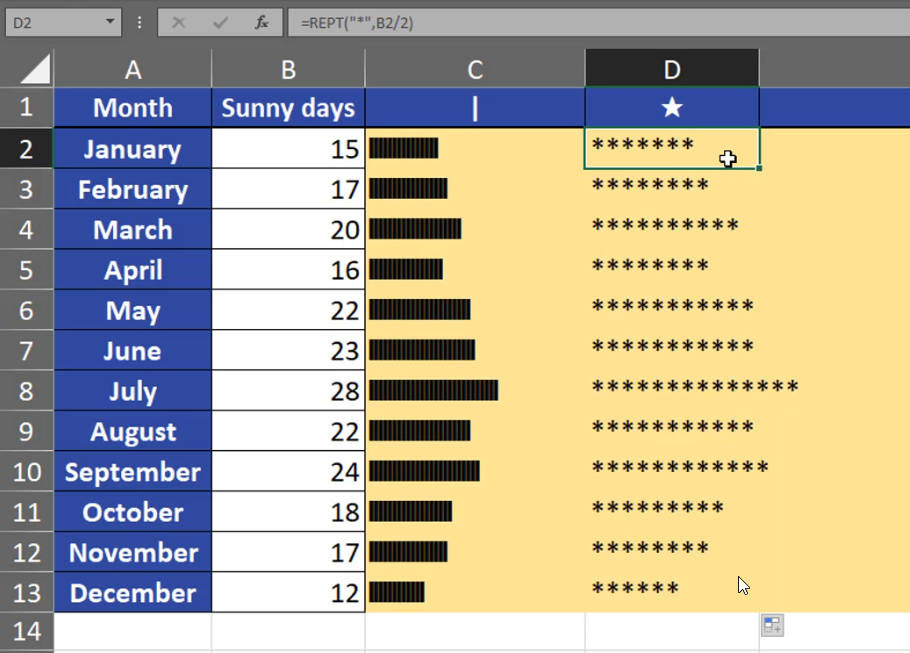
=REPT(“*”,B2/2)
Fig. 9 Number division
When there is a smaller number of repeats, it looks quite good (Fig. 10)
Fig. 10 Shorter strings
We have to remember that an asterisk is a simple sign, and we can use whatever sign we like. Let’s take, for example, a star (Fig. 11)
=REPT(“★”,B2/2)
Fig. 11 A formula with a star
We can see that the strings are very long (Fig. 12). We can divide them by even a greater number, e.g. 3.
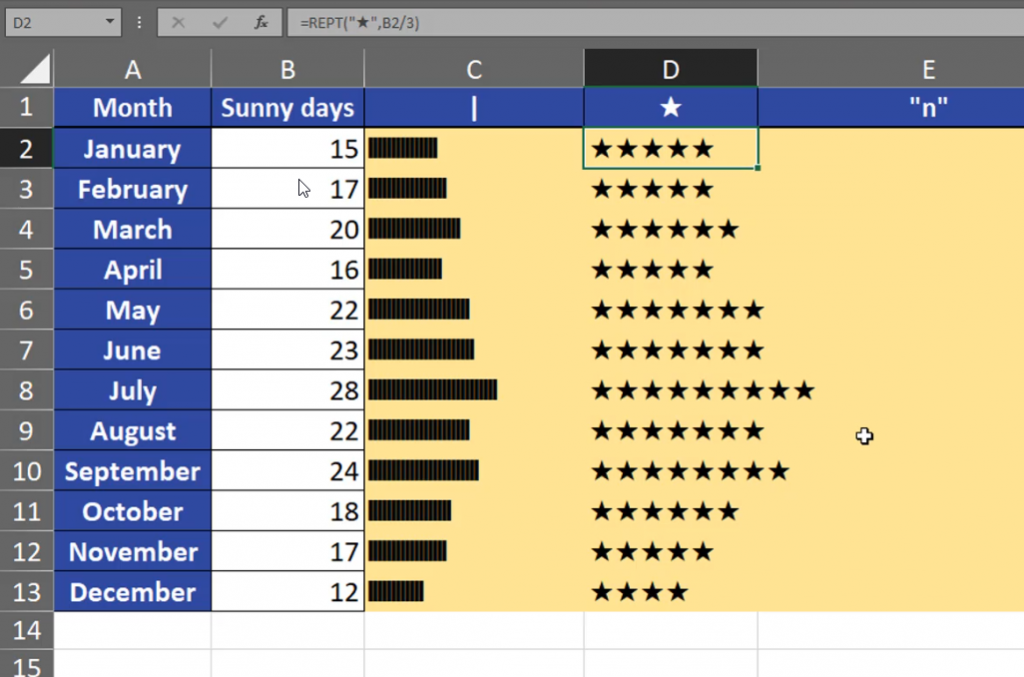
=REPT(“★”,B2/3)
Fig. 12 Dividing by 3
After putting the formula, it looks good (Fig. 13).
Fig. 13 Shorter strings
In our last example, we are going to repeat the letter n (Fig. 14)
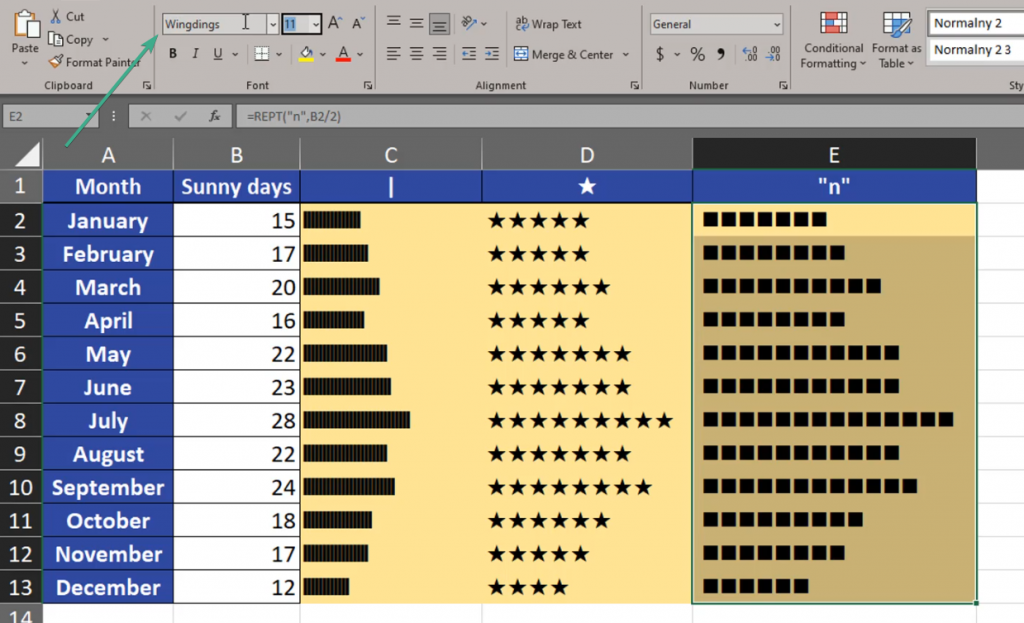
=REPT(“n”,B2/3)
Fig. 14 Repeating n
Now, we can see many ns (Fig. 15)
Fig. 15 N string
However, we can change our font into Windings, and the letter n changes into squares, which looks quite good as data bars (Fig. 16)
Fig. 16 N into squares
Summing, up, when we use different signs and different number of repeats, we can create quite good data bars using a formula.
Today, we are going to talk about how to filter many pivot tables at once. We have three pivot tables based on the same dataset from the left (Fig. 1).
Filtering multiple Pivot Tables at once using a slicerFig. 1 Three Pivot tables
If we want to filter many pivot tables at once, we have to connect then into one slice. We have to select one cell from the first pivot table, then find the PivotTable Analyze tab and Insert Slicer command, where we want to add the slicer by Country (Fig. 2)
Fig. 2 Slicer by country
After pressing OK, we have the slicer. We can change its size and color (Fig. 3).
Fig. 3 Color and size change
Now, we can filter the first pivot table with the slicer. When we click on the name of a country, we can see changes in the first pivot table (Fig. 4). However, the second and the third pivot table did not change because they are not connected to the slicer.
Fig. 4 Slicer for the first pivot table
In order to connect then, we select the slicer, then we click on the Slicer tab, then the Report Connection command, which opens up a window, where we can see three pivot tables. They have generic, default names, and when we aren’t sure if they are the right ones, we can look which sheet they are located in. Then, we check proper check boxes to connect all pivot tables and press OK (Fig. 5)
Fig. 5 Connecting three pivot tables
Now, we can see that the slicer is filtering all, three, connected pivot tables (Fig. 6)
Fig. 6 Slicer for three pivot tables
When the pivot table name or the sheet name is not enough to identify the right one, we can change their names. When you select a proper pivot table, go to the PivotTable Analyze tab, then select the PivotTable Name command, and write the name you want. Let’s write PivotDate (Fig. 7). Giving names to pivot table makes it easier to work with them.
Fig. 7 Name change
Now, that we have the slicer, we can easily filter three pivot tables at once (Fig. 8).