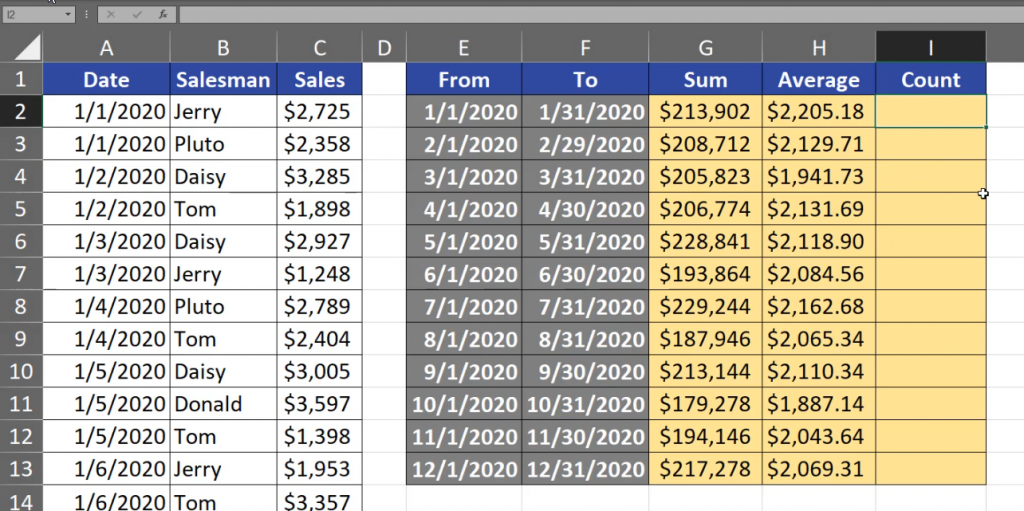
Today, we are counting sums, averages and number of transactions with more than one condition. In our example, we have transaction sales table and we want to count the values for given months. However, the months are written as the first day of the month and the last day of the month. It means that we have to add two conditions in order to count it. Let’s start with sums. We can use the SUMIFS function. The first argument of this function is a range on which we will be summing. In our case it’s the sales column so we have to select cell C2 and press the Ctrl + Shift + ↓ combination, then the F4 key to lock it (Fig. 1).
=SUMIFS($C$2:$C$1193
SUMIFS AVERAGEIFS and COUNTIFS functions SUM with conditionsFig. 1 SUMIFS function with a locked range
We write a comma, and then we are going to the criteria range 1. This will be the range where we will be checking the first criterion, which is the third argument of the SUMIFS function. In our case, we are checking dates, so let’s press cell A2, Ctrl + Shift + ↓, then the F4 key. We are adding a comma again, and now we have to write the first condition, which is the first criterion. The order of our conditions is not important because, in the end, all conditions have to be met to count the thing we want. Let’s start with the From date. We want values that are bigger or equal to this date, which means that we have to write the symbols of larger than and equal in double quotes, then an ampersand because we are combining this text with the value from cell E2 (Fig. 2).
=SUMIFS($C$2:$C$1193,$A$2:$A$1193,”>=”&E2
Fig. 2 SUMIFS with the first condition
After pressing the F9 key, we can see that Excel changed the date into a number. This makes Excel check our condition properly (Fig. 3).
=SUMIFS($C$2:$C$1193,$A$2:$A$1193,“>=43831”
Fig. 3 Excel changed the dates
However, let’s move back to previous text by pressing Ctrl + Z. Now, we have the first condition. We can see that the second condition is necessary with second critirion because the next two arguments are in square brackets (Fig. 4).
=SUMIFS($C$2:$C$1193,$A$2:$A$1193,”>=”&E2
Fig. 4 Arguments in square brackets
Criteria range 2 in our case is the same as criteria range 1, so we can just copy it (Ctrl +C, Ctrl +V), but we really need to put it because each criteria range is working just with the argument of its criteria. It means that criteria range 1 is working with criteria 1, and criteria range 2 is working with criteria 2. In our case, the criteria 2 are numbers smaller than or equal to the last day of the month in cell F2.
When we want to sum the values from the sum range, the first and the second condition have to be met. Let’s put the formula and copy it down. We can see that at the end everything is working properly because we have written the formula properly (Fig. 6).
Fig. 6 Proper results
We still have some more values to count. Let’s take the averages. Since I’m a lazy person, I will copy the whole formula in edit mode, then go to the Average column, paste it and change only the name of SUMIFS into AVERAGEIFS. After entering it, we can see that only the sum range changed its name into average range. The remaining argument names stayed the same. It’s because the SUMIFS and the AVERAGEIFS formulas have the same syntax, but they count sums and averages correspondingly (Fig. 7).
Fig. 7 Function name change
Let’s put the formula into our cell and copy it down. We have the results (Fig 8).
Fig. 8 SUMIFS reults
Let’s now count the number of transactions. We will use the COUNTIFS function. This function doesn’t have any range on which we could count sums, averages and so on. It only needs criteria ranges and criteria. Our first criteria was the one with dates. So, let’s write A2, then press Ctrl + Shift + ↓, then the F4 key to lock it and a comma. I want to show you that the order of conditions is not important. Let’s take values smaller that or equal to the date in cell F2, comma, then the same criteria range, then the second criteria will be greater than or equal to the value from cell E2. Those are all the arguments we need for a COUNTIFS function (Fig. 9).
After copying the formula down, we have the results. We can check if our average is correct just by looking at it because it is just the sum divided by the number of transactions (Fig. 10).
Fig. 10 Checking the results
We can see that the numbers are exactly the same as in the Average column (Fig. 11).
Fig. 11 AVERAGEIFS and divide gives the same results
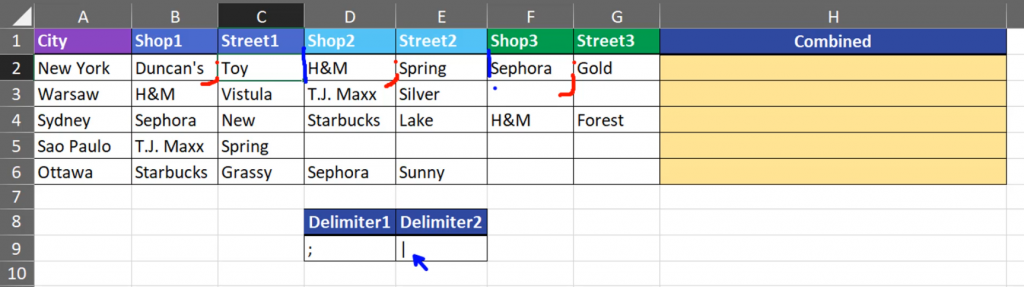
Today, we are going to combine text with two, different delimiters. In our example, we have shop and street names. We want to put a semicolon between each shop and street name. However, between street and shop names we want to put another symbol, which is a pipe. What is important in our example, is the fact that not all cells are filled. We want to just ignore them while combining text (Fig. 1).
Combine text with different delimitersFig. 1 — Text to combine
This task is very simple in Excel 2019 and newer versions because we have the TEXTJOIN function. In the first argument of this function, we are putting the delimiter. We can even put more than one delimiter. In our example, the delimiters are placed in cells D9 and E9, so let’s put them in the formula and let’s lock them by pressing the F4 key. When we put more than one delimiter in the TEXTJOIN function, the function will use them alternatively, which means that first, it will use the semicolon, then the pipe, then the semicolon and so on. In next argument we have to decide whether we want to ignore empty cells or not. In this case, as I said earlier, it’s very important for us to ignore them, so we are writing TRUE or 1. The last argument we need is just text, i.e. the range with text. Let’s close the formula (Fig. 2)
=TEXTJOIN($D$9:$E$9,1,B2:G2)
Fig. 2 — Formula for combining text
After putting it into the cell, let’s copy it down. We have the results. We can see there are semicolons between shop and street names, and pipes between street and shop names (Fig. 3).
Fig. 3 — Combined text
In the TEXTJOIN formula, delimiters orientation is not important. They can be horizontal or vertical.
We can even hardcode them here by selecting first argument and pressing the F9 key to evaluate it. Now, they are written as text (Fig. 4).
=TEXTJOIN({“;”,”|”},1,B2:G2)
Fig. 4 — Hardcode delimiters
We can leave them like that and the formula will work the same.
Today, we are going to combine or concatenate two or more texts together. Let’s start with creating full names. It is a simple example with two texts. We can use the CONCATENATE function, or, if you have Excel 2019 or a newer one, you can just use the CONCAT function which combines two text ranges. The CONCATENATE function cannot combine ranges, only single cells. However, in our example, it doesn’t matter because when we combine the first name and the last name, in reality, we want to combine three texts as there is a delimiter between the first and last name. That’s why we have to add, let’s say, a space. The space should be in double quotes because it is a text (Fig. 1).
Combine Text from Two or more Cells
=CONCATENATE(A2,” “,B2)
Fig. 1 CONCATENATE function
After entering and copying it down, we have full names (Fig. 2).
Fig. 2 Full names
If you don’t like using the function, you can use the ampersand sign (&) to combine texts. However, while using the sign, it is important to put the sign between each point of connection. It means that the & sign must be placed between the first cell address and the space, and between the space and another cell address (Fig. 3)
=A2&” “&B2
Fig. 3 Ampersand signs in a formula
After entering the formula, we have the same results as after using a function (Fig. 4). It is up to you which one you choose.
Fig. 4 The same results
In our second example, we want to combine more than one text together, i.e., the first, middle and last name. We will use the CONCATENATE function once more, but this time we are clicking on the insert function command near the formula bar and we can see that a Function Argument window appeared. In the window, we have argument/text boxes where we will write our text. We can choose a text from a cell (press Tab). In the Text2 bar, we can write a space. When we press the Tab key, Excel will add double quotes for us. In the Text3 bar there will be cell B2. In the next bar below, we do the same with writing a space. In the last bar, we place cell C2. We can even see our formula result straight in the Function Window (Fig. 5).
=CONCATENATE(A2,” “,B2,” “,C2)
Fig. 5 Function Arguments window
After entering the formula, we have our results (Fig. 6). In this example, using the Insert Function command was quite fast.
Fig. 6 Formula results
I have also prepared one more function that exists from Excel 2019. It is called TEXTJOIN. It can combine text from ranges with the same delimiter. In our case, the delimiter is a space, so we have to write a space in double quotes. Then, we have to decide if we want to ignore empty cells. In most cases yes, so we can write either TRUE or 1. Let’s write 1 because it is shorter. Then, we are selecting the text range, which is the cells that we want to join (Fig. 7)
=TEXTJOIN(“ “,1,A2:C2)
Fig. 7 TEXTJOIN function
After entering the formula and copying it down, we have our results (Fig. 8)
Fig. 8 TEXTJOIN function results
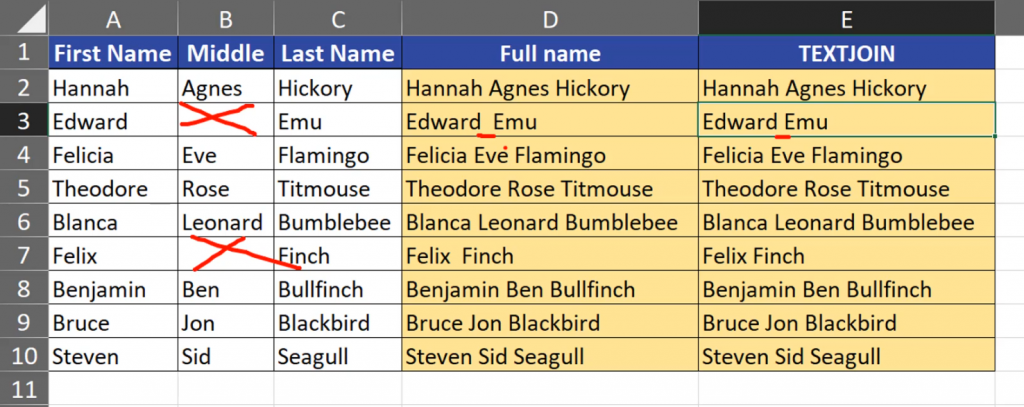
While combining many texts, it is very important to choose proper function. Let’s assume that some people don’t have middle names. In such a case, the TEXTJOIN function will ignore empty cells and will add only one space. However, the CONCATENATE function will leave two spaces. In such a situation we would have to use the IF function to properly address this problem (Fig. 9).
Fig. 9 One space and two spaces in different functions
Summing up, we joined the first, middle and last name in each row using the CONCATENATE function that combines more than two texts, and the TEXTJOIN function that combines a range of texts.
When you want to count the number of columns in a range, you can use the COLUMNS function and select a proper range (Fig. 1)
COLUMNS function — how many columns in a range
=COLUMNS(B13:E17)
Fig. 1 COLUMNS function
The function will return the number of columns in this range (Fig. 2)
Fig. 2 Number of columns
You can also create a horizontal sequence of numbers. You just have to write the COLUMNS function and create a proper range, let’s say B13 to B13. In this case, it is important to lock one of the cells with a $ sign by pressing the F4 key so that it doesn’t move (Fig. 3)
=COLUMNS($B$13:B13)
Fig. 3 COLUMNS function with a range
After entering the formula and copying to the right, we can see that our range expands, i.e. one cell stays the same, and the other one is moving to the right (Fig. 4).
Today, we are going to count sums and averages with conditions. In our first example, we have a small table where we sell fruit. We want to sum up the whole weight and average weight for a single cell. To sum the values with conditions we can use the SUMIF function. In the first argument, we write the range where we need to check our condition and lock it by pressing the F4 key. In the second argument, which is criteria, we just put a reference to a single cell with the product name. We don’t have to lock the cell because while copying the formula down, we want the fruit names to change. The third argument of the function is the sum range. It is closed in square brackets which means that it is not necessary write it, however we will do it. We want to sum values from the Weight column. Then the F4 key to lock it (Fig. 1).
SUM and AVERAGE with condition — SUMIF and AVERAGEIF functions
=SUMIF($B$2:$B$10,F2,$C$2:$C$10)
Fig. 1 SUMIF function
After all arguments have been written, let’s look at our ranges and try to understand how the SUMIF function works. The function will look at each cell in the Product column and check if they meet the conditions. In the first cell, we have apples, which means that the condition is met. In such a situation, the function will keep on looking for the third argument placed in the same row. If it finds it, it will add the value. If there is another cell that meets the same condition, it will also add the value from the same row (Fig. 2).
Fig. 2 Finding conditions
Our formula looks as follows (Fig. 3).
=SUMIF($B$2:$B$10,F2,$C$2:$C$10)
Fig. 3 SUMIF formula
After entering and copying down, we can see how many apples, pears and oranges we have sold (Fig. 4).
Fig. 4 Results
Now, let’s try to count the average weight of a single sale. We just have to copy our SUMIF formula in the edit mode and paste it into the cell in the Average column. The SUMIF and the AVERAGE functions have the same arguments. We just change the function name. We can see that the name of the third argument changed from sum range into average range, however it is still the same Weight column (fig. 5).
=AVERAGEIF($B$2:$B$10, F2,$C$2:$C$10)
Fig. 5 Name change
After entering and copying it down, we have our results (Fig. 6).
Fig. 6 AVERAGEIF counted
Let’s move on to our second example. We want to check here what would happen if we give the AVERAGEIF or SUMIF function just two arguments. In this example, we just want to count the average sale. We are starting with a simple AVERAGE function without conditions, so without IFs, for the Sales column (Fig.7).
=AVERAGE(C2:C11)
Fig. 7 Simple AVERAGE function
After entering it, we have the average (Fig. 8).
Fig. 8 Average
Now, let’s count the average with a condition. We don’t want to count the value if it equals 0. Let’s write the AVERAGEIF function, select the same range and write the condition. We open double quotes and write <>0 and close it. When we don’t write the third argument in the AVERAGEIF or SUMIF functions, Excel takes the first range as the range in which we are doing our calculations. In this situation Excel doesn’t take empty cells and cells with 0 into calculating the average. After entering it, we can see different results. It’s because our condition was triggered in the AVERAGEIF function, which means that Excel did not count the cells with 0 (Fig. 9).
Fig. 9 Different results
When we delete the value with 0, we can see that the AVERAGE and AVERAGEIF function return the same results. It’s because functions such as AVERAGE, SUMS, MIN and MAX do not consider empty cells (Fig. 10).
Fig. 10 Results without empty cells
However, when we put 0 into the cells, the AVERAGE function will count it which means that the average will go down (Fig. 11).
Fig. 11 Results with zeros
Summing up, a simple AVERAGE function counts cells with 0, and the AVERAGEIF function doesn’t due to the condition.
In Excel, in most situations, empty cells are treated as 0.