When we want to count the number of working hours in Excel, we have z problem with night shifts. Let’ start with a human approach and day shift.
Working hours and wages. Night shifts | Excel Tips #28
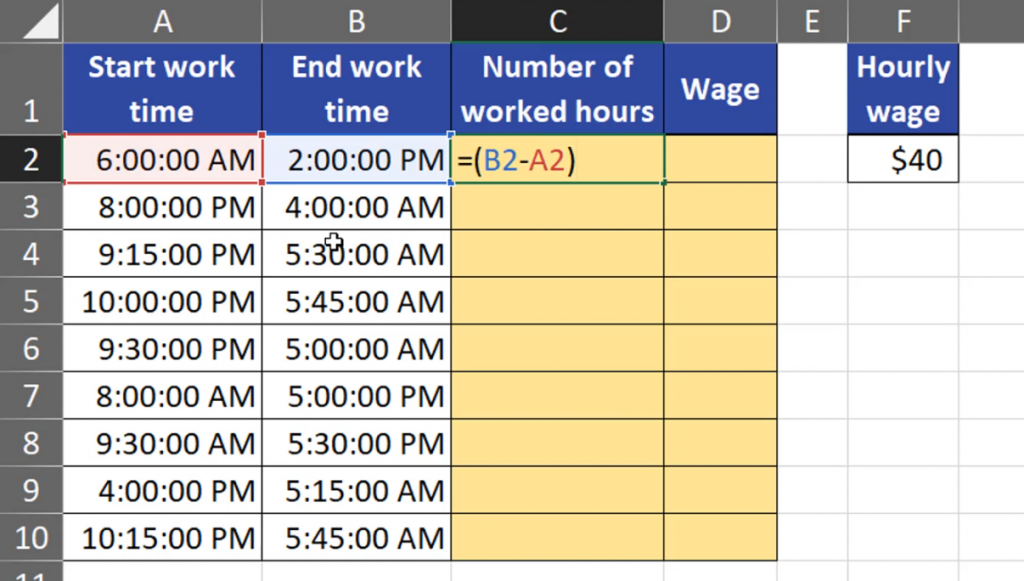
In a day shift, the end time is larger that the start time, so we can just subtract one number from another (Fig. 1).
=(B2-A2)
Fig. 1 Subtracting one number from another
After entering and copying down, we can see we have proper results for day shifts. In night shifts, when the end time is smaller that the start time, it does’t show us any time, only hashtags. It happened so because Excel refused to show any negative dates or time. Even if Excel showed us negative results, they would be wrong (Fig. 2).
Fig. 2 No negative time
First, we have to remember that Excel stores time as numbers, i.e. the part of the day that has passed. When we look at the first hour, which is 8 am, it means that one-third of the day has passed. When we go to the Time bar, and press General, we can see that the time will be given in decimal numbers (Fig. 3), (Fig. 4).
Fig. 3 General Time Fig. 4 Time in decimal numbers
When we want to convert Excel time into human time, we have to multiply it by 24 (Fig. 5).
=(B2-A2)*24
Fig. 5 Excel time into human time
Now, we can see that the we can easily read the values. Remember to have the General option selected. There are negative values for the night shift. What’s more, they are wrong, as there are only 8 hours from 8 pm to 4 am in row number 3, not 16.
Fig. 6 Negative and wrong results
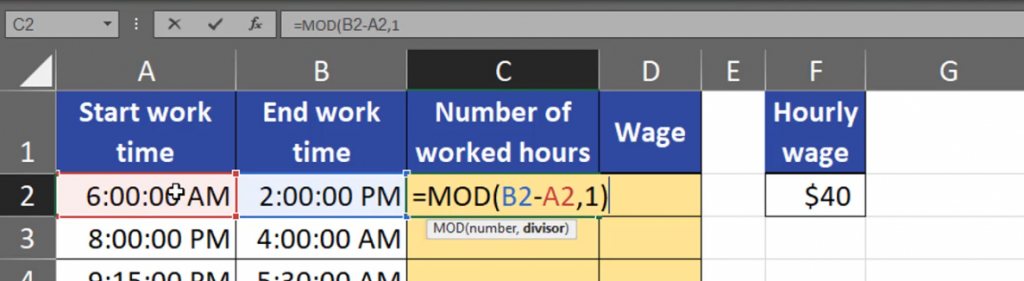
It means that this human approach won’t work in Excel, so let’ delete the results. What can work here is a function called MOD, which is also quite short. In the MOD function, we also use the human approach, which means that from the end time we subtract the start time. However, the MOD function needs a divisor, i.e. 1, which means that it is one whole day (Fig. 7)
=MOD(B2-A2,1)
Fig. 7 Divisor
Now, we can see that our results in day and night shifts are correct. We can finally calculate the wages by multiplying the number of working hours by the hourly wage (Fig. 8).
=C2*$F$2
Fig. 8 Calculating wages
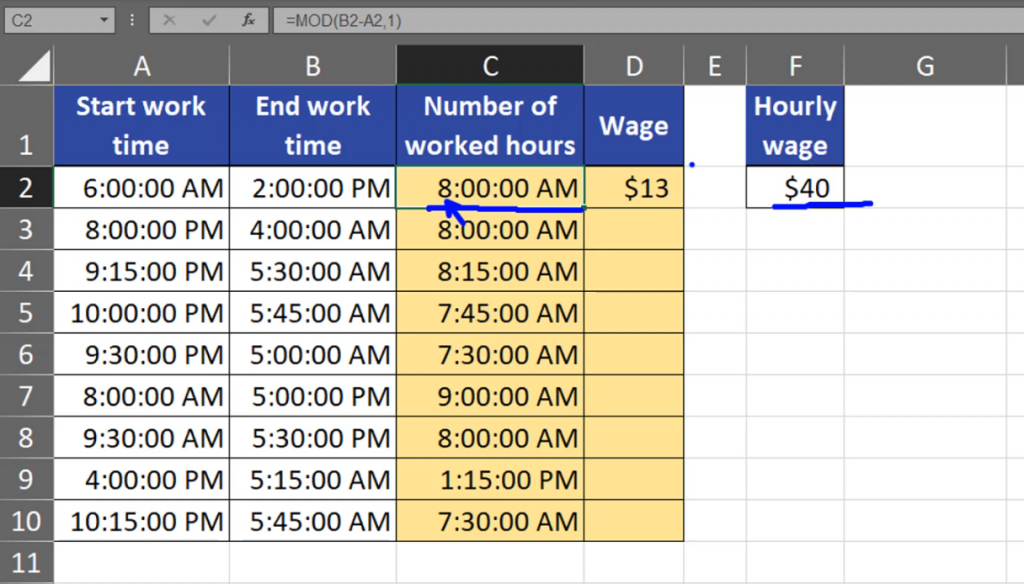
As we can see the results are wrong again. Let’s have a look at row number two. There are 8 hours, but Excel doesn’t multiply 8 hours times 40$, but one third of a day times 40$, which gives us around $13 (Fig. 9).
Fig. 9 Wrong results
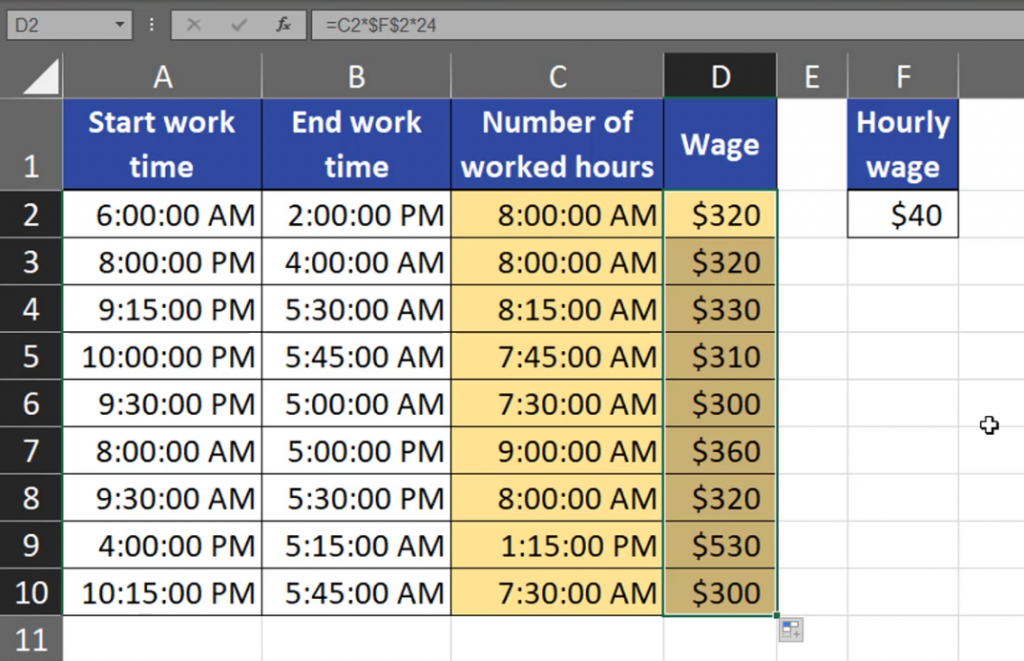
We want to have proper wages, so we need to multiply it by 24 hours (Fig. 10).
=C2*$F$2*24
Fig. 10 Multiplying by 24
Now, we have proper wages (Fig. 11).
Fig. 11 Proper wages
If you don’t need precision bigger than 15 minutes, just use numbers instead of Excel time. I’m advising it to you from my own experience.
Sometimes, we want to find all the matched values and combine them into one text string, i.e., we want o VLOOKUP all matched values and then combine them.
VLOOKUP all matches and combine them
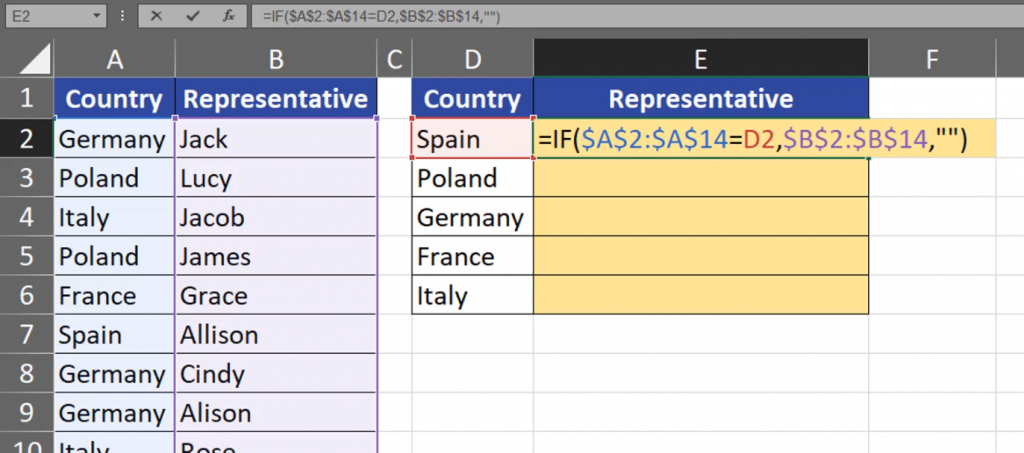
I will give you two solutions. The first solution will work from Excel 2019, and the second one will work in Dynamic Array Excel. First of all, we have to check if our representative comes from the country we are looking at. Let’s take a representative from Spain. There is only one representative of Spain in our example. We can check it using the IF function, where we have to create a proper logical test. We have to take into consideration the Country column, so let’s write it by selecting the column and clicking the F4 key to lock it. Then, we have to check if the values from the column are equal to just one country (Spain) by clicking the cell with the name of Spain (D4). It means that cell D4 will be compared to each cell from the Country column individually (Fig. 1)
Fig. 1 Comparison to each cell
The logical test will return TRUE only in the case of Spain. In the case of other countries, it will return FALSE. If the logical test is in an array, we can choose proper, corresponding result as a return value. We just need to select an array of the same size, which, in our case, is the Representative column. Then, we click the F4 key to lock it. When the logical test returns FALSE, we want to see an empty text string, so we have to write a space in double quotes. Let’s close the function with a parenthesis (Fig. 2)
=IF($A$2:$A$14=D2,$B$2:$B$14,” ”)
Fig. 2 IF function
Since I’m working in Dynamic Array Excel, Excel spills the results to the whole column (Fig. 3).
Fig. 3 IF function results
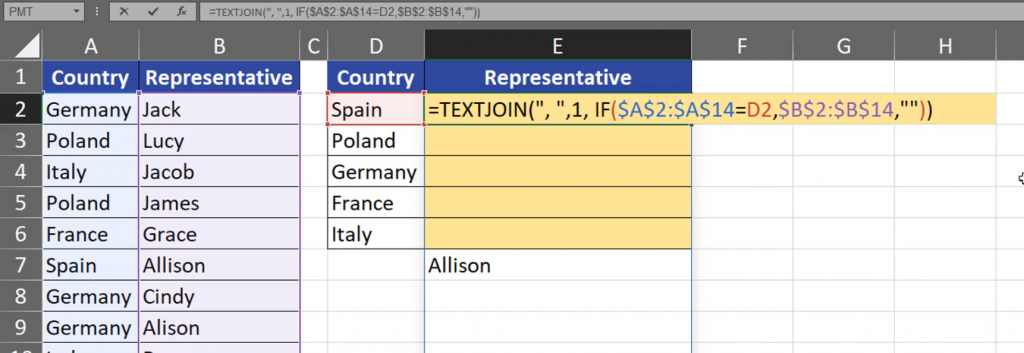
We can see that we have only one representative of Spain, and many empty cells. If we want to find the remaining representatives, we have to join the information we have. To do that, we can use the TEXTJOIN function, which is available from Excel 2019. We have to give the function a delimiter. Let’s write a comma and a space in double quotes. Then, we have to decide whether we want to ignore empty cells. We definitely do, so let’s write TRUE, or its shorter version, which is 1. Then, we just have to close the whole formula once again (Fig. 4).
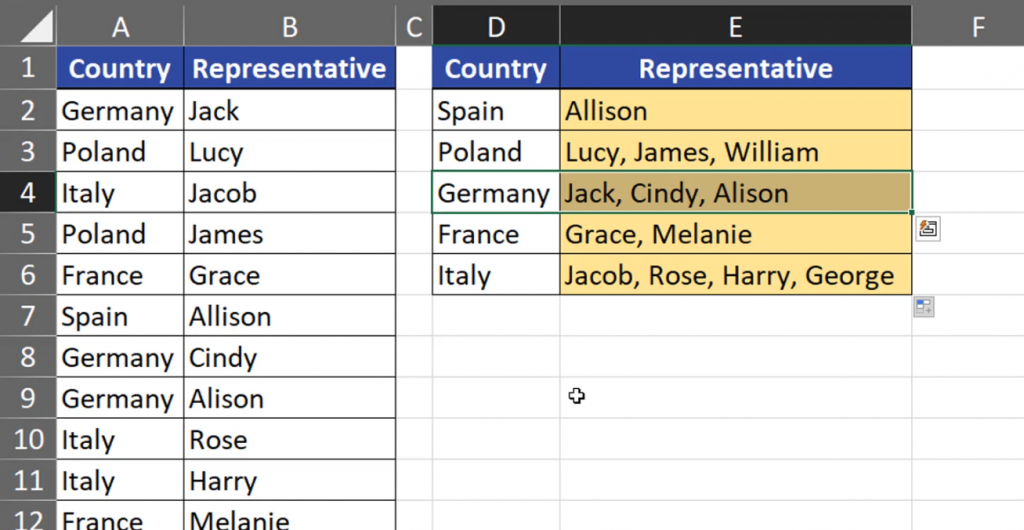
After entering the formula and copying it down, we have our results (Fig. 5).
Fig. 5 TEXTJOIN function results
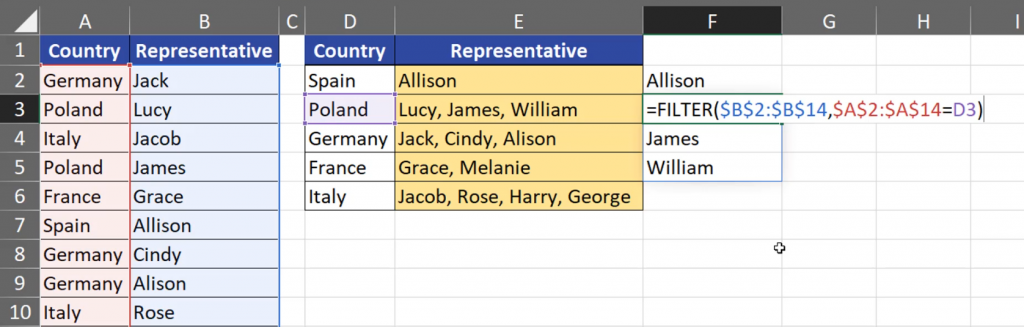
When we are in Dynamic Array Excel, we can use the FILTER function instead of the IF function. This function just filters our data. Let’s write FILTER function. Our data is located only in one column, which is the Representative column, so we have write the range and lock it with the F4key. Then, we have to create an array of the same size with logical values of TRUE or FALSE. It means that we have to create the same logical test as we did with the IF function. Let’s add the Country column (A2:A14), F4key to lock it, then an equal sign to check whether any of the value from the Country column is equal to Spain (D2). After closing it, we have a ready formula (Fig. 6).
=FILTER($B$2:$B$14,A$2:$A$14,=D2)
Fig. 6 FILTER function
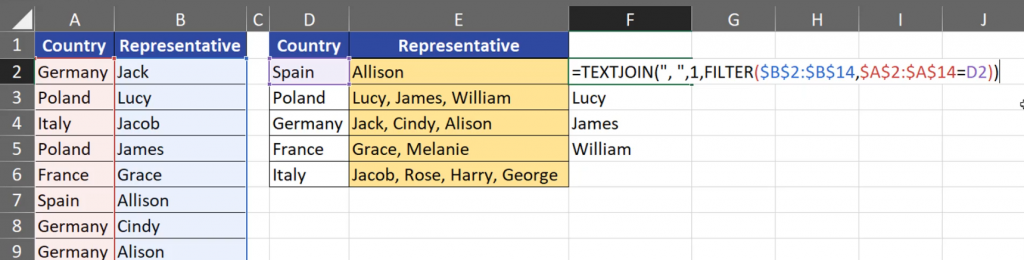
We can see that Spain has only one representative, but Poland has got three (Fig. 7).
Fig. 7 FILTER function results
That’s why we have to put our FILTER function results into the TEXTJOIN function. And, once again, we have to write a comma and a space in double quotes. Then, we have to decide that we want to ignore empty cells and close the whole formula (Fig. 8)
=TEXTJOIN(“, “,1,FILTER($B$2:$B$14,A$2:$A$14=D2))
Fig. 8 TEXTJOIN with FILTER function
We can see that the results in the first solution and in the second solution are the same (Fig. 9)
Sometimes, we need to count all cells containing certain text. In our example, it will be a product name.
Count all cells containing certain text | Excel Tips #27
Let’s assume that we want to count all cells containing the name of eggs. In the In the basket column, we have cells where the name of eggs appears at the beginning, in the middle, or at the end of the text. Sometimes, the cell contains only eggs (Fig. 1).
Fig. 1 Eggs in many locations
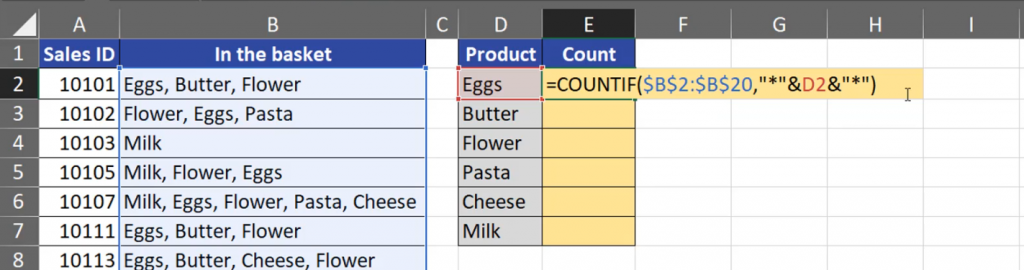
In Excel, it’s a simple task because we have the COUNTIF function, where we can use wildcards. Let’s start writing the function. We have to select a range, which is the In the basket column, F4 to lock it, then let’s write criteria. If we want to count only cells that contain only the word eggs, we would writeD2 in the criteria, however, we want to count the cells which contain eggs and other products as well. That’s why we have to add a wildcard, i.e. an asterisk (*) that replaces any number of characters, even an empty text string. So, we’re putting the asterisk in double quotes, then we’re writing an ampersand to combine it with eggs, then D2, where eggs are. As we can see, eggs can be placed also at the end, that’s why we have to combine it with another asterisk in double quotes. Our criteria look as follows (Fig. 2).
=COUNTIF($B$2:$B$20,”*”&D2&”*”
Fig. 2 Our criteria
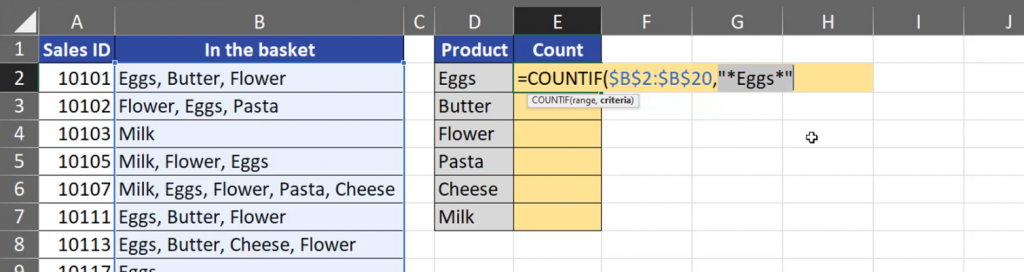
When we press the F9 key, we can see how our criteria really look (Fig. 3).
=COUNTIF($B$2:$B$20,”*Eggs*”
Fig. 3 Our criteria after F9
By pressing Ctrl + Z, let’s return to the previous version, and close our formula (Fig. 4).
=COUNTIF($B$2:$B$20,”*”&D2&”*”)
Fig. 4 Our whole formula
After entering and copying the formula down, we can see how many cells contain certain product (Fig. 5).
When we want to create a star rating in Excel, there is at least one possible solution.
How to create a star rating in Excel in 3 minutes
We want to use stars from the Unichars, Unicode. We just need to use the UNICHAR function and a proper unicode (Fig. 1).
Fig. 1 UNICHAR function
In older versions of Excel, copying those stars from the Internet should also work. We just have to have the signs we want to repeat. As we can see, we already have number rating. The biggest number is five, and the lowest is zero and there is a proper number of stars next to them. Let’s delete them however, and start creating a proper formula from the beginning. We start with the REPT function. We write G4 because our text string is there, then press the F4 key to lock it. When we want to add the number of times we want to repeat, we write C2, which is in the Rating column. Then, we close the formula (Fig. 2).
=REPT($G$4,C2)
Fig. 2 REPT function
We can copy it down and we have our black stars (Fig. 3).
Fig. 3 Start rating
However, we assumed that we always want to have five stars. It means that if the rating is lower than five, we have to add some white stars. In such a case, we just have to combine one REPT function with another REPT function using an ampersand. In the second REPT function, we have to write G5 and press the F4 key to lock it. In the place on the number of repeats, we have to write five minusC2 - a cell from the Rating column.
=REPT($G$4,C2) &REPT($G$5,5-C2)
Fig. 4 Two REPT functions combined with an ampersand
When we tell the REPT function to repeat zero times, it won’t repeat anything, i.e. it will return an empty text string. In the case of a 5‑star rating, we have five stars. However, then it comes to a cell with zero, the REPT function treats it the same as an empty cell in most situations (Fig. 5).
Sometimes, we want to highlight rows of weekends. In such a case, we can use conditional formatting but, first of all, we have to create a formula which will return TRUE for Saturday and Sunday, i.e. weekend days. We can start with the WEEKDAY function which will return the number of days in a week (Fig.1).
Highlight weekends with conditional formatting
=WEEKDAY(A2)
Fig. 1 WEEKDAY function
We have our results. However, this numeration assigns number 7 to Saturday, and number 1 to Sunday. It’s not proper from our perspective. We have to modify it by changing the week day number sequence. The best option we can choose is number 1 for Mondays and number 7 for Saturdays. That’s why we have to write 2 in the second WEEKDAY function argument (Fig.2).
=WEEKDAY(A2,2)
Fig. 2 Selecting the correct option
And now, Saturday is 6 and Sunday is 7. We can clearly see that weekends are numbers bigger that 5 (Fig. 3).
Fig. 3 Weekend bigger that 5
Now, we can simply create a logical test that defines if the week day number is greater than 5 (Fig. 4).
=WEEKDAY(A2,2)>5
Fig. 4 A simple logical test
When we copy our formula down, we can see that we have TRUE for Saturday and Sunday, and FALSE for the rest of the days (Fig 5).
Fig. 5 TRUE and FALSE
The results are proper, but we have to remember that we want to highlight the whole row. We have to ask ourselves how our reference should behave. We know that we will be copying the formula down and to the right (horizontally). What we have to remember is that we always want to look at column A, which is the Date column. Even if we want to go one or two columns to the right, we always want to look at the cell from column A (Fig. 6).
Fig. 6 A cell from column A
That’s why, we have to lock the column by pressing the F4 key, but not the rows. It means that we have to put only one dollar sign (Fig. 7).
=WEEKDAY($A2,2)>5
Fig. 7 Locking the column
When we copy the formula down, nothing changes. But, when we copy it to the right and down, we can see that TRUEs and FALSEs are in a row (Fig. 8).
Fig. 8 Rows
Now, we have to copy our formula and the select the range on which we want to add conditional formatting. The range starts with cell A2, so let’s press this cell, then Shift + →, two times to the right and Ctrl + Shift + ↓ to the end of our data. Cell A2 has to stay active and we will start creating our formula from the perspective of this cell (Fig. 10).
Fig. 9 Selected range with an active cell
Now, we go to the Home tab, then to Conditional Formatting, and we select the New Rule option (Fig. 10).
Fig. 10 New Rule option
In the window that will appear, we have to select the Use a formula to determine which cells to format bar, then paste our formula into the Edit the Rule Description and press the Format button (Fig. 11).
Fig. 11 New Formatting Rule window
In the Format Cells window, we press the Fill button, then choose the color we like. Let’s choose a shade of grey, then the OK button, and the OK button once again in the New Format Rule window (Fig. 12).
Fig. 12 Format Cells window
Now, we can see that each day of the weekend is highlighted the way we wanted (Fig. 13).