
Today, we are going to combine text with two, different delimiters. In our example, we have shop and street names. We want to put a semicolon between each shop and street name. However, between street and shop names we want to put another symbol, which is a pipe. What is important in our example, is the fact that not all cells are filled. We want to just ignore them while combining text (Fig. 1).
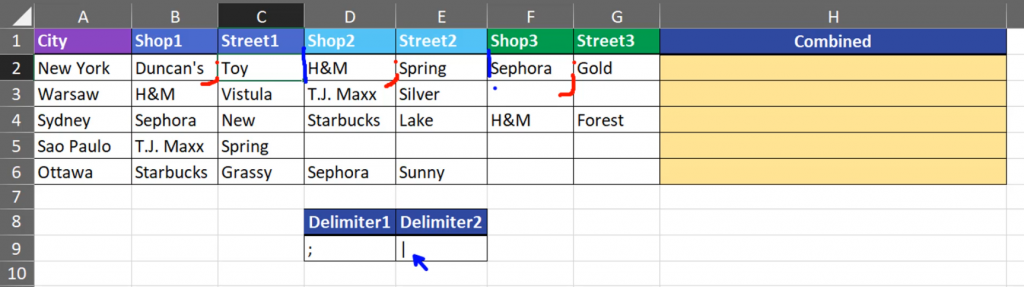
This task is very simple in Excel 2019 and newer versions because we have the TEXTJOIN function. In the first argument of this function, we are putting the delimiter. We can even put more than one delimiter. In our example, the delimiters are placed in cells D9 and E9, so let’s put them in the formula and let’s lock them by pressing the F4 key. When we put more than one delimiter in the TEXTJOIN function, the function will use them alternatively, which means that first, it will use the semicolon, then the pipe, then the semicolon and so on. In next argument we have to decide whether we want to ignore empty cells or not. In this case, as I said earlier, it’s very important for us to ignore them, so we are writing TRUE or 1. The last argument we need is just text, i.e. the range with text. Let’s close the formula (Fig. 2)
=TEXTJOIN($D$9:$E$9,1,B2:G2)

After putting it into the cell, let’s copy it down. We have the results. We can see there are semicolons between shop and street names, and pipes between street and shop names (Fig. 3).

In the TEXTJOIN formula, delimiters orientation is not important. They can be horizontal or vertical.
We can even hardcode them here by selecting first argument and pressing the F9 key to evaluate it. Now, they are written as text (Fig. 4).
=TEXTJOIN({“;”,”|”},1,B2:G2)

We can leave them like that and the formula will work the same.