
Today, we will discuss relative and absolute references. Let’s start with relative references to count a profit. If you want to count the profit, you just deduct expenses from income (Fig. 1).

It means that you subtract the cell C3 value from the value in cell B3 (Fig. 2):
=B3 — C3
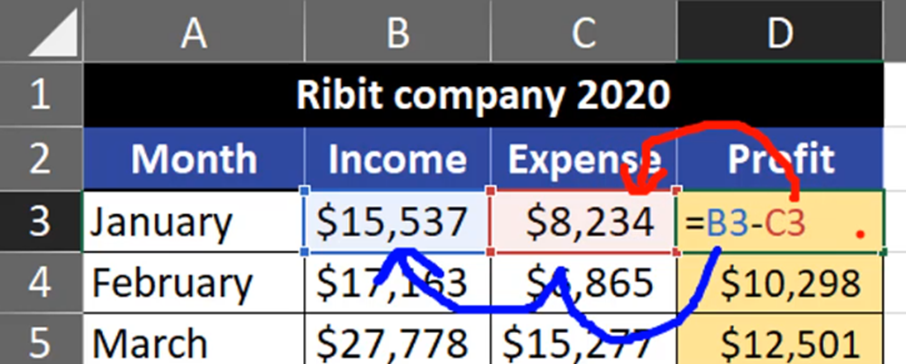
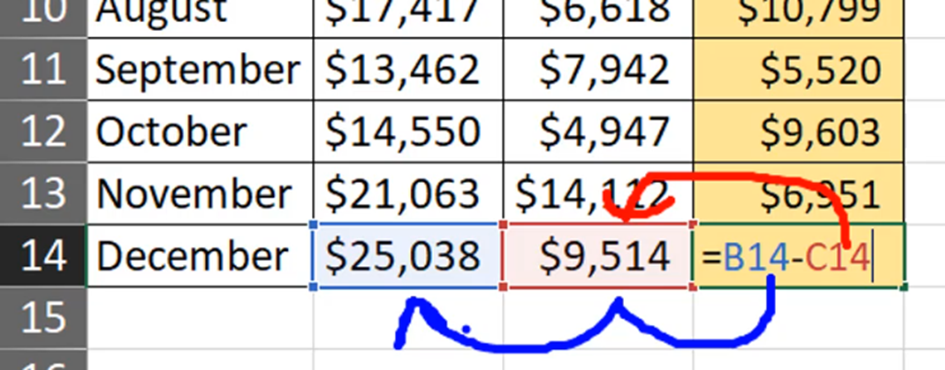
When we copy this formula down, it’s changing because we have different results in different cells. When we look at our formula, it refers to cells B3 and C3. But, in reality, it refers the cells which are one place to the left and two places to the left (Fig. 1). In the last formula (=B14-C14), we can see B14 minus C14 (Fig. 3) but it’s still one cell to the left and two cells to the left. The relative reference is moving with the formula and cell.
We don’t always want the formula to behave this way. In our second example you can see an absolute reference. We want to count the tax for each product. That’s why we have to multiply the price by our tax. However, we don’t want the tax cell to move, so we must lock cell J2 by pressing F4 key — add two $ signs (Fig. 4):
=G2*$J$2
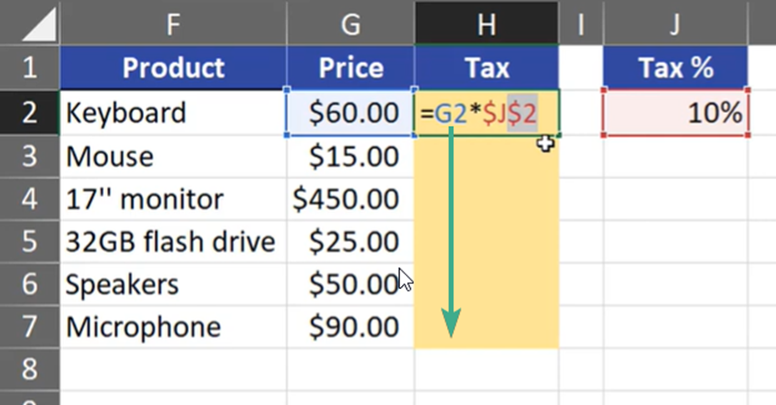
When we copied our formula down, only cell G2 had changed because it’s a relative references. Cell J2 stayed the same and it will not move from this cell (Fig. 5)
