
Sometimes, our data is combined into one string and we want to extract only a piece of information, which will help us properly understand our data.
Let’s start with extracting the date. What is important in our example, is that each string of information is of the same length, i.e. it has got a fixed width.

We can clearly see, that the date starts with the eighth sign and has got eight signs itself (mm/dd/yy). If we want to extract a certain piece of information, we have to use the MID function. First, we have to write A2 in the argument, because our information is located in this cell. Then, we write 8 because we start with the eighth sign, and then 8 again because we want to extract eight chars. And we have our formula (Fig. 2).
=MID(A2,8,8)

After copying it down, we have the results. It’s important though, that the MID function, just like all text functions, returns results as text. We can see it because each date is aligned to the left. It may be problematic if we want to do some date operations. We can change the text by adding 0 to our formula. In other words, we can perform any mathematical operation that won’t change the returned date (Fig. 3).
=MID(A2,8,8)+0

Now, we can see that the values are aligned to the right. It means that Excel treats them like numbers, i.e. like dates. We can extract Id numbers the same way. They start with the first sign and have got 6 digits in total. We can also use the MID function. First, we select cell A2, then write 1 because it starts from the first sign, then we write 6 because we extract 6 digits (Fig. 4).
=MID(A2,1,6)

As we can see, Excel extracted Id numbers. Since it is text, Excel left the leading zero for us. We can leave Id numbers as text if it’s important for us. If it isn’t, we can do the same as with dates, i.e. add zero (Fig. 5).
=MID(A2,1,6)+0
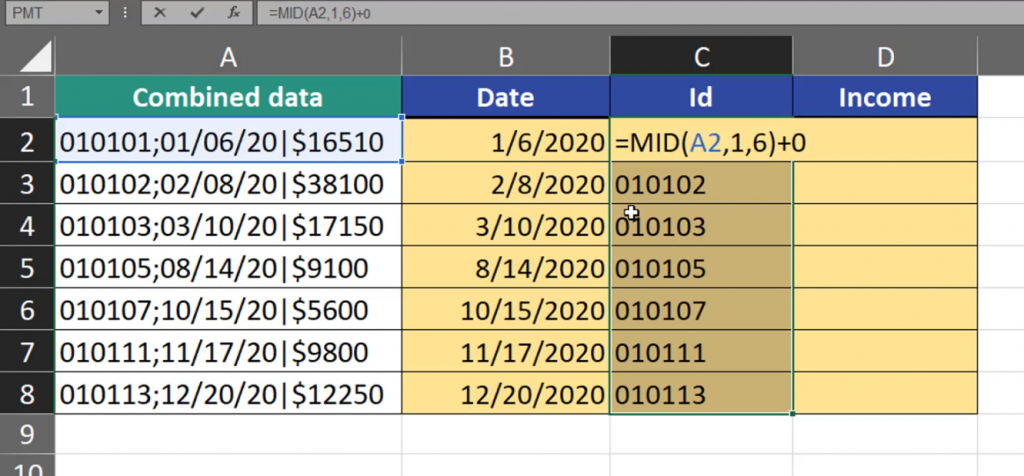
We can see that Id numbers moved to the right and the leading zero vanished. The last piece of information we want to extract is the Income. Income values don’t have a fixed width. But, since it’s the last piece of information, we can extract more signs than we need. Let’s extract also the dollar sign. The dollar sign is in the seventeenth position. We start writing the MID formula, then we add cell A2, then 17, and then we have to add the number of places we want too extract. Let’s write 10. It’s, in fact, more that we need, however it’s not less either. The MID function will extract the information to the end without any errors (Fig. 6).
=MID(A2,17,10)

As in our previous formulas, the results are also text. By adding zero, we change the results into numbers.
MID(A2,17,10)+0

We can see that now the results are numbers. However, we can see that we lost the dollar sign. This is the way Excel converts numbers with dollar signs before them. Indeed, the dollar sign isn’t important in our data, so we should start from the eighteenth sign (Fig. 8).
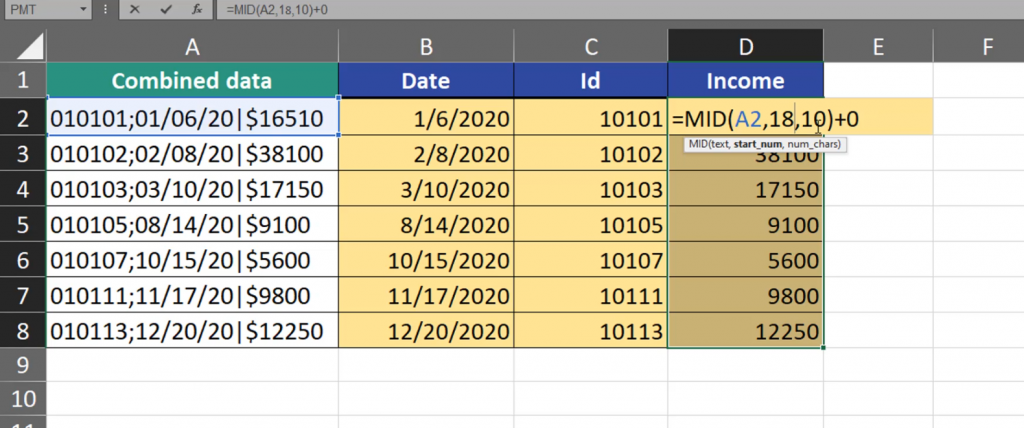
Now, we have only numbers. If we want to add a currency, we just go to the Home tab, drop down the General bar and select the Currency option (Fig. 9).

When we have our results with zeros at the end, we can remove them by pressing the Decrease Decimal option (Fig. 10).
