
Sometimes, we want to get the first day of the next month. I will show you two solutions how to calculate this date in Excel. The first solution uses the DATE function. It needs the number of days, months and years. First, we will write the number of years, which we can extracted from the current date using the YEAR function (Fig. 1).
=DATE(YEAR(A2

The same case is with the month number. We are using the MONTH function and extracting the number from the date. However, we have to remember that we want to have the next month. That’s why we are adding +1. It’s important that the DATE function will work with numbers larger than 12. It will just go to the next year, or the previous one if the number is lower than zero. Then, we are putting 1 because we want the first day of the month. And just like that, we have the whole formula (Fig. 2).
=DATE(YEAR(A2),MONTH(A2)+1,1)

After entering and copying it down, we have the results (Fig. 3).

If we want to go further into the future, we just have to add more months, let’s say 3 (Fig. 4).
=DATE(YEAR(A2),MONTH(A2)+3,1)

We can see that the function goes to next years in certain dates (Fig. 5).

If we want to go back in time, we have to subtract a number, let’s write ‑3 (Fig. 6).
=DATE(YEAR(A2),MONTH(A2)-3,1)

And we are in the past. As we can see, the number of years is also calculated analogically (Fig. 7).

The second solution uses the EOMONTH function. We have our starting day and the number of months we are moving. Since we want to have the fist day of the next month, first, we need to go to the last day of the current month (Fig. 8).
=EOMONTH(A2,0)

And we have the last day (Fig. 9).

However, we want the day after, so we have to add 1 (Fig. 10).
=EOMONTH(A2,0)+1

Now, we have the first days of the next months (Fig. 11).

When we want to have the first day of the month that is three months into the future, we just have to add 2 months in the second argument of the EOMONTH function. It’s because we will go 2 months into the future, and then we have +1 at the end, so it sums up to 3 months (Fig. 12).
=EOMONTH(A2,2)+1

And we have proper dates (Fig. 13).

Analogically, when we want to go back in time, we need to write one month more than we really want as a negative number because we are going to the last day of the month and then we are adding 1, so in total we are going back 3 months (Fig. 14).
=EOMONTH(A2,-4)+1
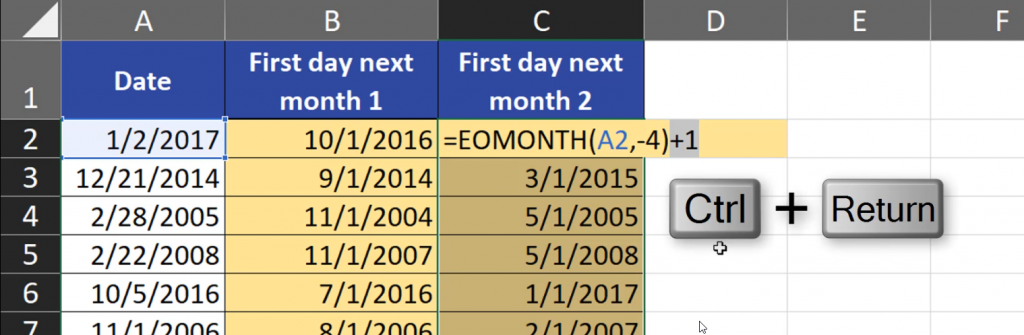
And we have the solution (Fig. 15).

The results are the same, so it’s up to you which solution you will choose.