
Today, we are going to extract middle names from full names. However, not everybody has got a middle name, so let’s start with the first and the last name. We can use here the Flash Fill option, which means that we just have to start writing the first name, then another first name. After that, the Flash Fill command does the work for us (Fig. 1).

All we need to do is accept the results with Enter, and we have the first names (Fig. 2)

We do the same with the last name, i.e., we start writing the last name in the first cell, but this time we will force the Flash Fill option to work by pressing the Ctrl + E keyboard shortcut (Fig. 3). This way, we have last names (Fig. 4)


Now, the hardest part – middle names. We start writing the middle name in the first row, however, we don’t have a middle name in the second row. This time we’ll also use the Flash Fill option (Fig. 5)

When all middle names have been extracted, we can see an error. Edward isn’t a middle name. We have to correct the Flash Fill answer. We can do it, until the Flash Fill Options icon is showing up (Fig. 6).

We have to change the middle name, which, in fact, isn’t a middle name, for a different mark, e.g. an exclamation mark. We simply write the mark in the place of the error, press Enter, and the Flash Fill option will do its magic again (Fig. 7) Exclamation marks are in the rows, where there aren’t middle names.

We can put almost anything in the place of the exclamation mark, e.g. a star (Fig. 8).

We usually don’t want any stars or other signs. We want to have blank cells, however, the Flash Fill option doesn’t work with spaces. That’s why we can use the Filter option, which we can find in the Data tab (Fig. 9). In the Filter option, we want to show only this sign (a star).

Now, we’re left only with stars (Fig. 10). We have to select the range (Ctrl + Shift + ↓) and press the Delete key to delete all the signs.

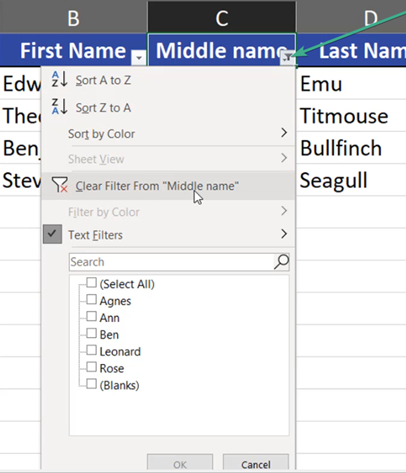
Then we can turn off the filter. We can do it manually, by pressing the filter icon and selecting the Clear Filter From “Middle names” option (Fig. 11) or by pressing the Ctrl + Shift + L key combination.
Now, we have middle names only in places, where they really exist, and blank cells, where there aren’t any middle names (Fig. 12)
