How can we count the number of words in a cell?
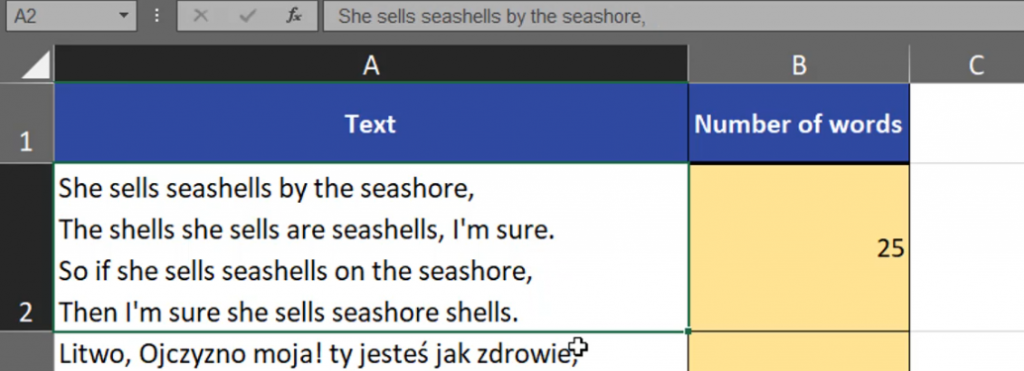
We can count the number of spaces between words. Let’s have a look at our first example. In cell A2, we have spaces between words and at the end of each line, so the case is simple. We can use the LEN function here that counts the length of text (Fig. 1).
=LEN(A2)

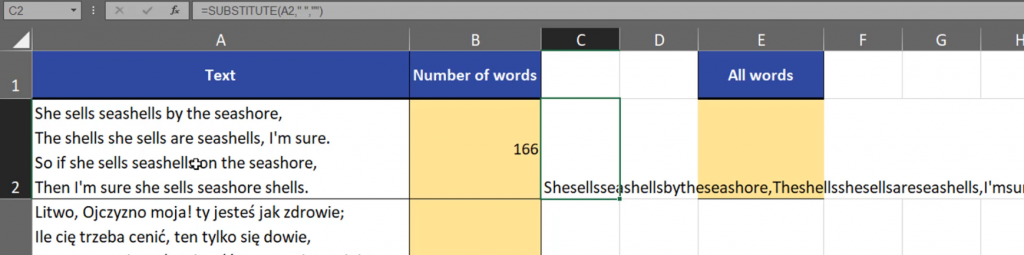
Now, that we have the number of signs, we can remove spaces. We can use the SUBSTITUTE function here. This function will change the old text, which in our case is a space into new text. And since we want to remove spaces, our new text will be an empty text string written in double quotes (Fig. 2).
=SUBSTITUTE(A2,” “,“”)

We can see that the function removed all spaces from our text (Fig. 3).
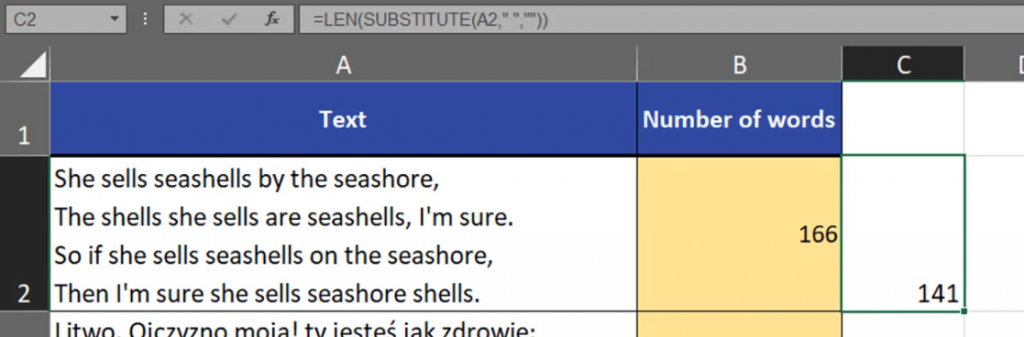
Now, we can count the length of the text without spaces using the LEN function (Fig.4).
=LEN(SUBSTITUTE(A2,” “,“”)

Now we know the length (Fig. 5).
Since we know how many spaces there are, we can use the formula to count the words. We just have to subtract this formula from the previous one (Fig. 6).
=LEN(A2)-LEN(SUBSTITUTE(A2,” “,“”))

And we have the number of spaces (Fig. 7).
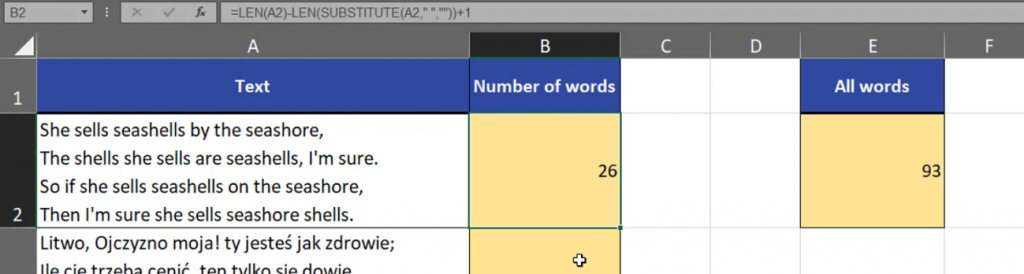
We still have to remember that to count the number of words, we have to add 1 because there is only one space between two words (Fig. 8).
=LEN(A2)-LEN(SUBSTITUTE(A2,” “,“”))+1

Now we know the number of words in each cell.

If we want to count words from all cells, we can use almost the same formula. The only thing we have to change is the range which now will be from A2 to A4 (Fig. 10).
=LEN(A2:A4)-LEN(SUBSTITUTE(A2:A4,” “,“”))+1
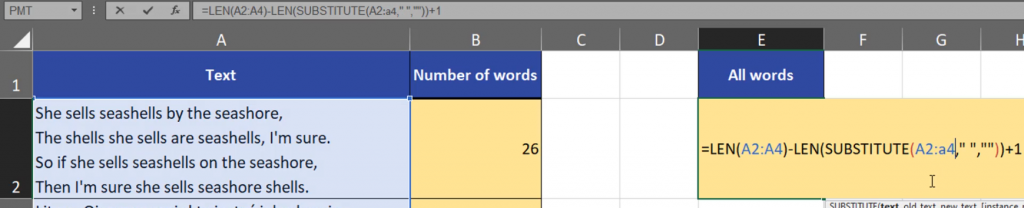
In Dynamic Array Excel, the results will be spilled, however we can sum the up (Fig. 11).

In the previous version of Excel we can use the the SUMPRODUCT function (Fig. 12).
=SUMPRODUCT(LEN(A2:A4)-LEN(SUBSTITUTE(A2:A4,” “,“”))+1
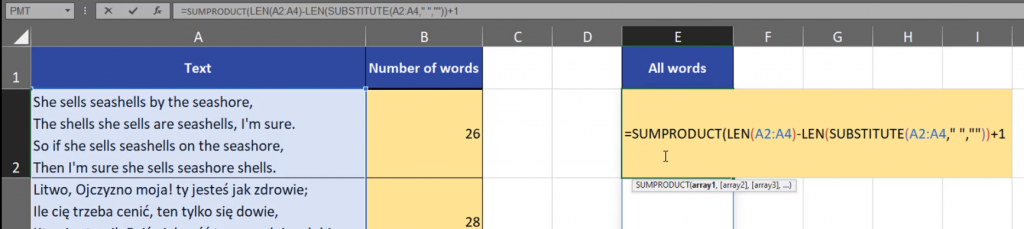
Final results (Fig. 13).