Today, we are going to remove unnecessary spaces. Sometimes, there’s a space at the beginning of text, sometimes, there are more than one space between two words, and sometimes, there are some spaces at the end. The last ones are the hardest to notice (Fig. 1)
Remove unnecessary spaces — TRIM functionFig. 1 Unnecessary spaces
The name in the first line, Brave Brandon with a space at the end, is something different for Excel, than Brave Brandon without a space. In such a case, we want to use the TRIM function to remove the space (Fig. 2)
Fig. 2 TRIM function
After copying it down, we have our names without unnecessary spaces (Fig. 3)
Fig. 3 No unnecessary spaces
This simple function removes unnecessary spaces from the beginning, the end, and the middle of text beetween words only leaves one space.
Today, we are going to talk about extracting first names, middle names and last names from full names. We define the first name as the first word from the left, the last name as the first word from the right, and the middle name, as everything between those two. Middle names are a bit complicated, as they can may consist of one word, a space, an abbreviation, or two or more words (Fig. 1)
Extract First Last and Middle Name with FormulasFig. 1 A list of names
Let’s start with extracting the first name. We just have to use the LEFT function, which extracts signs from the left. We have to insert the FIND function there, so that it finds the first space, and write the space in double quotes (Fig. 2)
=LEFT(A2,FIND(“ “,A2))
Fig. 2 Extracting the first name
Now, we have the first name (Fig. 3).
Fig. 3 The first name
But, we have to remember that the FIND function will return the position of the sign we’re looking for, which means that it finds the 7th position, which is a space (Fig. 4).
Fig. 4 7th position
The first name , however, consists of only 6 letters, which is what we want. It means that we want to extract less letters. So, we have write the formula once again, but this time we subtract one sign (Fig. 5)
=LEFT(A2,FIND(“ “,A2)-1)
Fig. 5 Subtracting one sign
Now, we have only the first name without unnecessary signs. After dragging it down, the whole column is full (Fig. 6)
Fig. 6 Full column
Let’s go to last names. This case is a bit more complicated. We don’t know whether we’re looking for the first, the second, the third or even a more distant space (Fig. 7)
Fig. 7 Too many possible spaces
There’s a trick to solve it. We have to repeat spaces. Within our text, we have to substitute a single space into many spaces, let’s say 29. We use the REPT function (Fig. 8)
=SUBSTITUTE(A2,” “,REPT(“ “,29))
Fig. 8 Repeating spaces
After accepting our function, we have our changed names with many spaces between them (Fig. 9)
Fig. 9 Names with many spaces
Now, we can start extracting names from the right side. We’re extracting not only all signs from our name, but also the remaining 29 signs (Fig. 10).
=RIGHT(SUBSTITUTE(A2,” “,REPT(“ “,29)),29)
Fig. 10 Extracting name and 29 signs
Now, we have the last name and many, many spaces before it (Fig. 11)
Fig. 11 Name with spaces
We have to delete them using the TRIM function. The TRIM function removes all spaces from a text string except for a single space between words. So, each space at the beginning and at the end of the string will be removed (Fig. 12)
=TRIM(RIGHT(SUBSTITUTE(A2,” “,REPT(“ “,29)),29))
Fig. 12 Trimming unnecessary spaces
After accepting it and copying it down, we have our last names (Fig. 13).
Fig. 13 Last names
Now, we have to find the thing between the first and the last name. We will use the SUBSTITUTE function. In the place of the first name, we will place nothing, i.e. an empty text string (Fig. 14).
=SUBSTITUTE(A2,B2,“”)
Fig. 14 Finding the middle name
Now, we have a shorter version of our name (Fig. 15).
Fig. 15 Shorter version
Let’s remove the last name now. We want to substitute the last name with an empty text string (Fig. 16)
=SUBSTITUTE(SUBSTITUTE(A2,B2,“”),D2,“”)
Fig. 16 Removing the last name
After entering and copying down, we have everything between the first name and the last name (Fig. 17). As you can see, we have also extracted spaces which we don’t need. So, let’s use the TRIM function to delete unnecessary spaces.
=TRIM(SUBSTITUTE(SUBSTITUTE(A2,B2,“”),D2,“”))
Fig. 17 Unneeded spaces
Because we are editing whole column we can press Ctrl + Enter.
That’s how we extract first names, last names and everything in between with appropriate formulas.
Today, we are going to extract middle names from full names. However, not everybody has got a middle name, so let’s start with the first and the last name. We can use here the Flash Fill option, which means that we just have to start writing the first name, then another first name. After that, the Flash Fill command does the work for us (Fig. 1).
Extract middle names with Flash FillFig. 1 — Using the Flash Fill option
All we need to do is accept the results with Enter, and we have the first names (Fig. 2)
Fig. 2 — Entering the results
We do the same with the last name, i.e., we start writing the last name in the first cell, but this time we will force the Flash Fill option to work by pressing the Ctrl + E keyboard shortcut (Fig. 3). This way, we have last names (Fig. 4)
Fig. 3 — Flash FillFig. 4 — Flash Fill results
Now, the hardest part – middle names. We start writing the middle name in the first row, however, we don’t have a middle name in the second row. This time we’ll also use the Flash Fill option (Fig. 5)
Fig. 5 — Flash Fill for middle names
When all middle names have been extracted, we can see an error. Edward isn’t a middle name. We have to correct the Flash Fill answer. We can do it, until the Flash Fill Options icon is showing up (Fig. 6).
Fig. 6 — Flash Fill icon
We have to change the middle name, which, in fact, isn’t a middle name, for a different mark, e.g. an exclamation mark. We simply write the mark in the place of the error, press Enter, and the Flash Fill option will do its magic again (Fig. 7) Exclamation marks are in the rows, where there aren’t middle names.
Fig. 7 — Exclamation marks
We can put almost anything in the place of the exclamation mark, e.g. a star (Fig. 8).
Fig. 8 — Stars
We usually don’t want any stars or other signs. We want to have blank cells, however, the Flash Fill option doesn’t work with spaces. That’s why we can use the Filter option, which we can find in the Data tab (Fig. 9). In the Filter option, we want to show only this sign (a star).
Fig. 9 — Filter option
Now, we’re left only with stars (Fig. 10). We have to select the range (Ctrl + Shift + ↓) and press the Delete key to delete all the signs.
Fig. 10 — Selected range
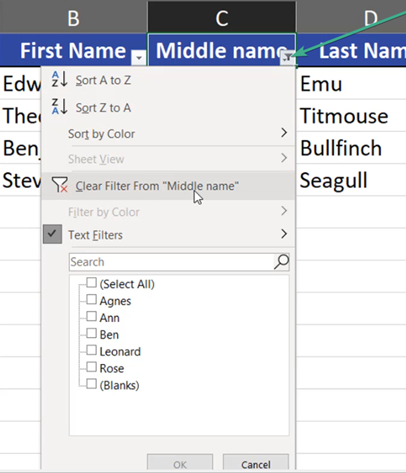
Then we can turn off the filter. We can do it manually, by pressing the filter icon and selecting the Clear Filter From “Middle names” option (Fig. 11) or by pressing the Ctrl + Shift + L key combination.
Fig. 11 — Turning off the filter
Now, we have middle names only in places, where they really exist, and blank cells, where there aren’t any middle names (Fig. 12)
Today, we will discuss logical tests and the IF function in Excel.
IF function and logical tests
Let’s start with logical test. We want to check whether our students passed the test, i.e. whether they achieved 70 points (cell D2). We need a formula that checks if the number from cell B5 is greater or equal to the value from in cell D2. We aslo have to lock the value from cell D2 by pressing F4 key (Fig. 1).
Fig. 1 — Logical test with locked cell D2
After copying the formula down, we have our logical answers (Fig. 2)
Fig. 2 — Logical answers
Logical answers, however, aren’t human answers. If we want something simpler, like pass/fail, we need to use the IF function in cell D5 (Fig. 3).
Fig. 3 — IF function inserting simpler answers
After copying it down, we have the answers that we want, instead of logical ones. If the logical test returns False, our IF function returns text Fail. If the logical test returns True, our IF function returns text Pass (Fig. 4)
Fig. 4 — Simpler/human answers
Sometimes, we want to know how many more points a student needs to pass their exam. In that case, we also use the IF function. This time, however, we are changing the direction of our test. We need to check if the value from cell B5 is lower than the value from cell D2 (70 points). If it is lower, it means that the student failed the exam. Calculating the number of missing points is a simple, mathematical operation. We just have to subtract the value from cell B5 (62 points) from the value in cell D2 (70 points). However, if a student passed the exam, we don’t need to calculate anything, so we’re returning 0 points (Fig. 5).
=IF(B5<$D$2,$D$2‑B5,0)
Fig. 5 — IF function calculating the number of missing points
After copying it down, we can see that one student needs 8 points to pass, and another one needs 35. The students who passed the exam, don’t need any more points, that’s why IF function returned 0 for them (Fig. 6).