
Sometimes, we need to make many statistical operations and use many statistical functions in Excel. How can we do it?
A fast and quick solution is using name ranges. For example, we have the SUM function that sums up all values from January (Fig. 1)

How can we name ranges and use them for our advantage? Let’s start with a simple example of the SUM function. For the SUM function, we have keyboard shortcut which is Alt + =. This way Excel will put the sum for January, which is a range form B2:B6 (Fig. 2)
=SUM(B2:B6)

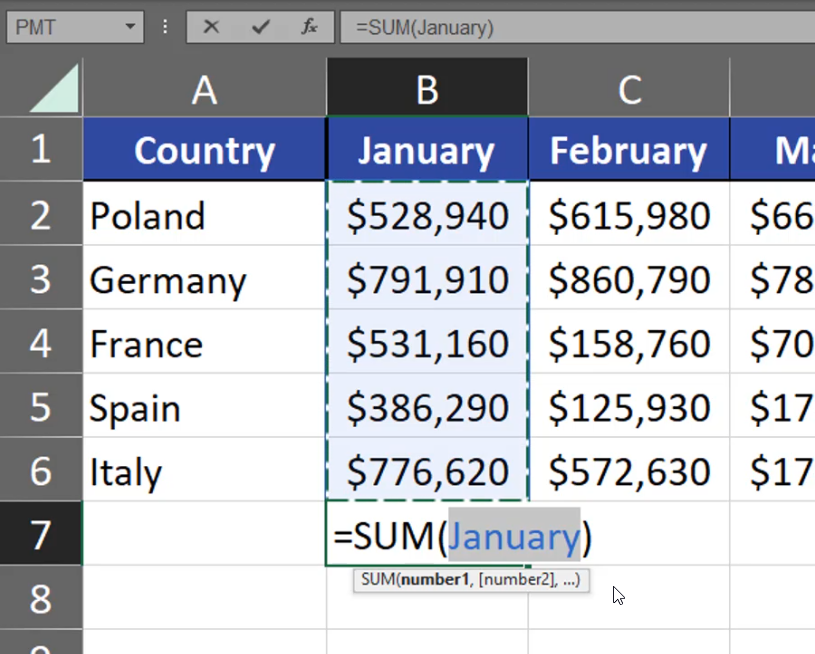
In the example above we had numbers. However, let’s go to another sheet where we have no numbers. When we want to sum the numbers from the previous sheet, it’s going to be a very tedious job, as we have to move between those two sheets and write proper values. What’s more, the reference we have while using values form another sheet isn’t the easiest to understand. What we can do is naming the ranges. We just have to select a range in a column and write a proper name in the Name Box (Fig. 3).

Now, when we are using the Alt + = shortcut under our values, Excel will automatically refer to the January range, which is B2:B6 (Fig. 4)
=SUM(January)
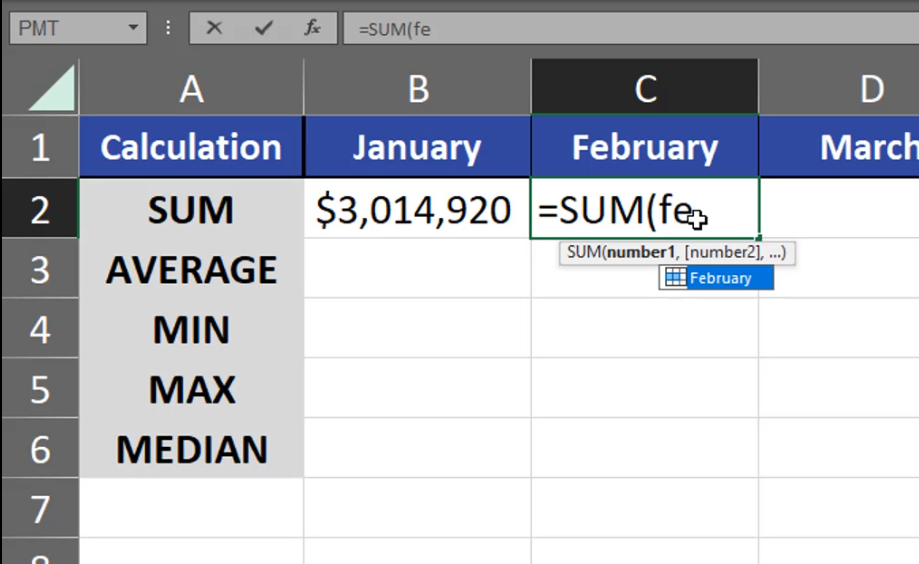
As we know, Excel remembers names. It means that we can use the name in calculation on a different sheet. When I start writing “ja” in another sheet, Excel will suggest the range name (Fig. 5). I can just accept it and sum the values from January.

As we can see, naming ranges makes our work faster. We can also name a bigger group of columns at one time. Just select the group you want. What’s important, when you’re selecting your data, you have to select the top rows, and then the numbers beneath them. Then, go to the Formulas tab, click on the Create from Selection command and select the Top Row checkbox in the window that appeared (Fig. 6)

Now, after we named our ranges, we can see that the February range is named February, the March range is named March and so on. When we move to another sheet, we can use those names (Fig. 7)
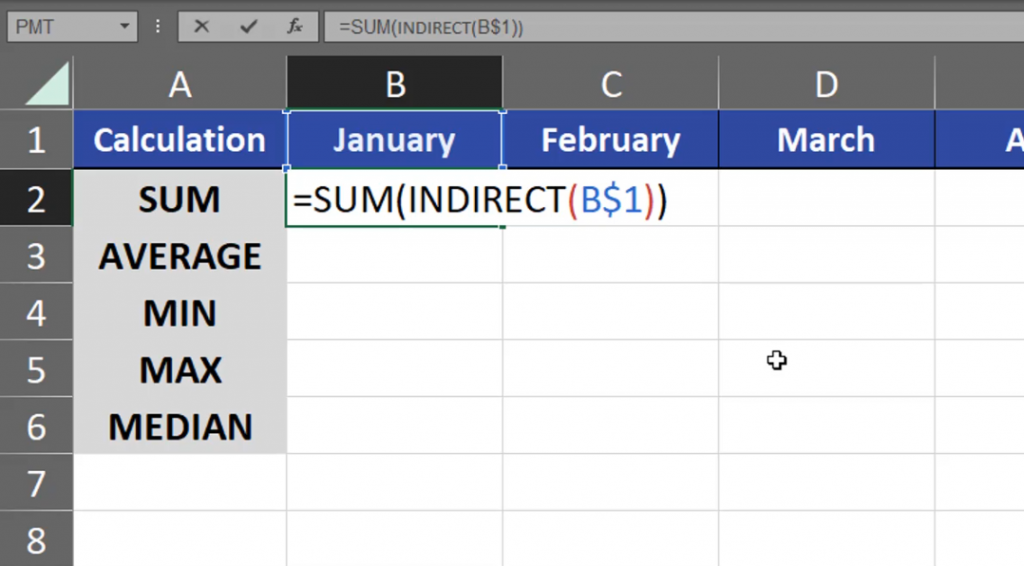
However, we can go one step further using the reference to names. I have January in cell B1. But, when I refer to cell B1, Excel won’t simply convert the text from cell B1 to a range because it just text. It means that our function won’t add anything. First of all, we have to lock the rows (B$1), then add the INDIRECT function to our calculation. Now, the INDIRECT function changes the text into a reference to the proper range (Fig. 8)
=SUM(INDIRECT(B$1))
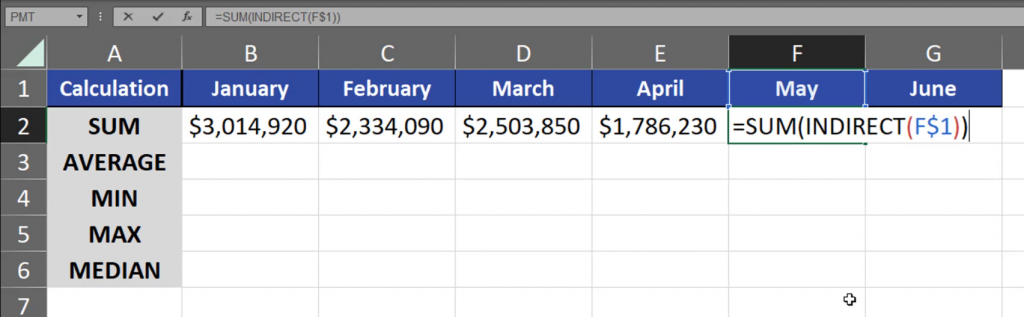
Now, when I drag the formula to the right, I will have sums from each individual month (Fig. 9)
=SUM(INDIRECT(F$1))
When I copy the formula one cell lower, I’m just changing SUM into AVERAGE (Fig. 11)
=AVERAGE(INDIRECT(B$1))

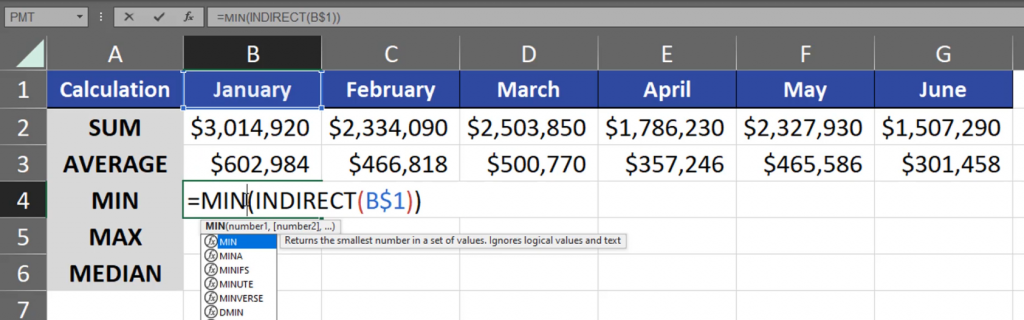
After I drag it to the right, I have proper results. I do the same with the remaining rows (Fig. 12)
=MIN(INDIRECT(B$1))
This way, we can quickly add more statistical operations for many months using proper name ranges and the INDIRECT function.