
How can we create a headline title that is in the Center Across Selection mode?
In Excel, we have two solutions. We can select sales and use the Megre&Center command from the Home tab (Fig. 1)

Excel will merge cells into one cell and align it in the center (Fig. 2).
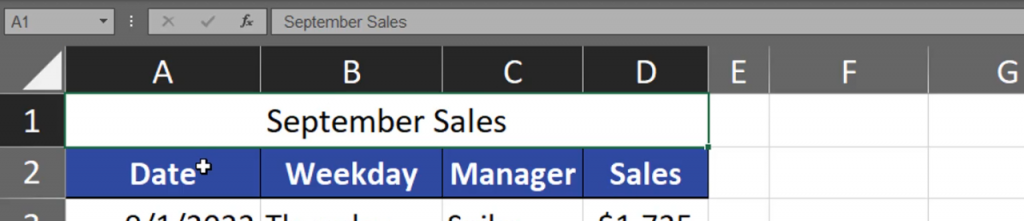
This solution, however, has got a small drawback as it created one cell instead of many cells. When we try to select only one column and go a bit too high, we end up in selecting every column (Fig. 3)
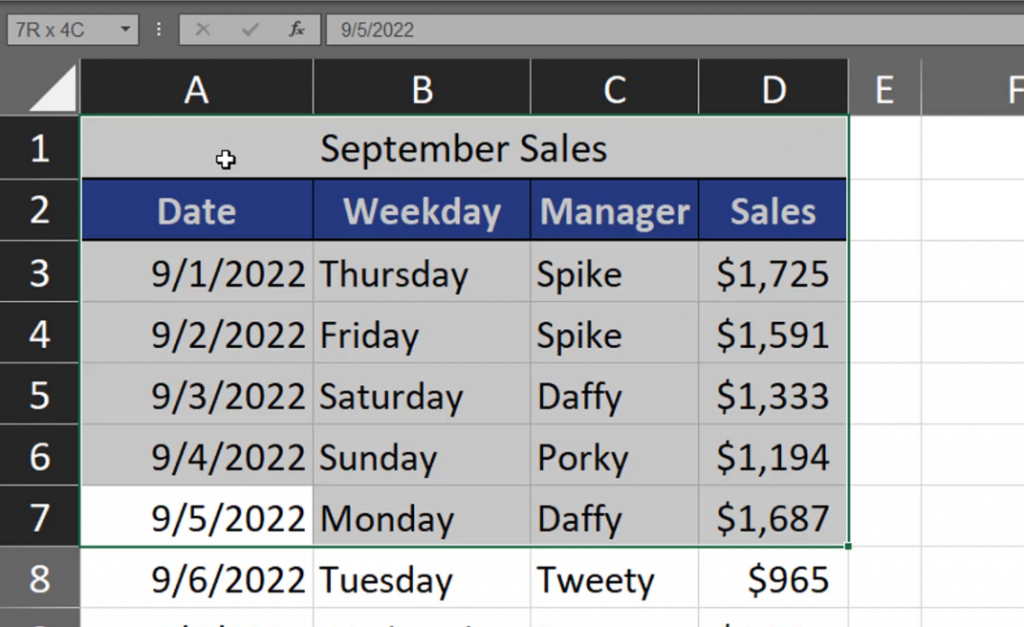
But, when we go down again, we will select only one column again, so it’s not a big problem. Sometimes, we want to move our data a bit to the right or left. When we try to copy our range, we can’t select only cell B1, which is a bit problematic. After selecting the whole range, we want to move it to the right. However, there’s still a problem. If we want to move the range only a bit to the left or right, we cannot do it (Fig. 4).

We have to go far enough to the right to make Excel copy the merged cell (Fig. 5).

I want to show you one more solution. Let’s deselect the Megre&Center command. Now that we have our range selected, we can press the Ctrl + 1 shortcut to go to the Format Cells window. In the window, we have to go to the Alignment tab, then select the Center Across Selection command in the Horizontal area, and press OK (Fig. 6).

We can see that our selected cells have merged. But this time, when we try to select one whole column, we can do it (Fig. 7).

You have to remember that now the value is located in cell A1. There’s nothing in B1, C1 and D1 cells. The value was just centered across selection. Let’s now change the coloring of the headline title and try to move it a bit to the right (Fig. 8).
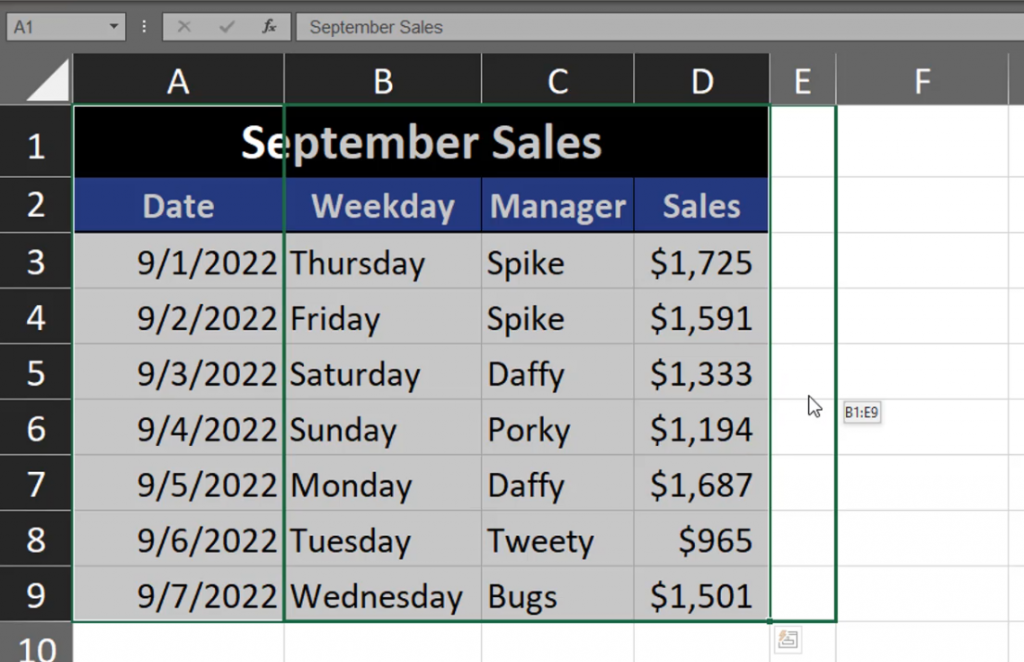
As we can see, it’s possible (Fig. 9).
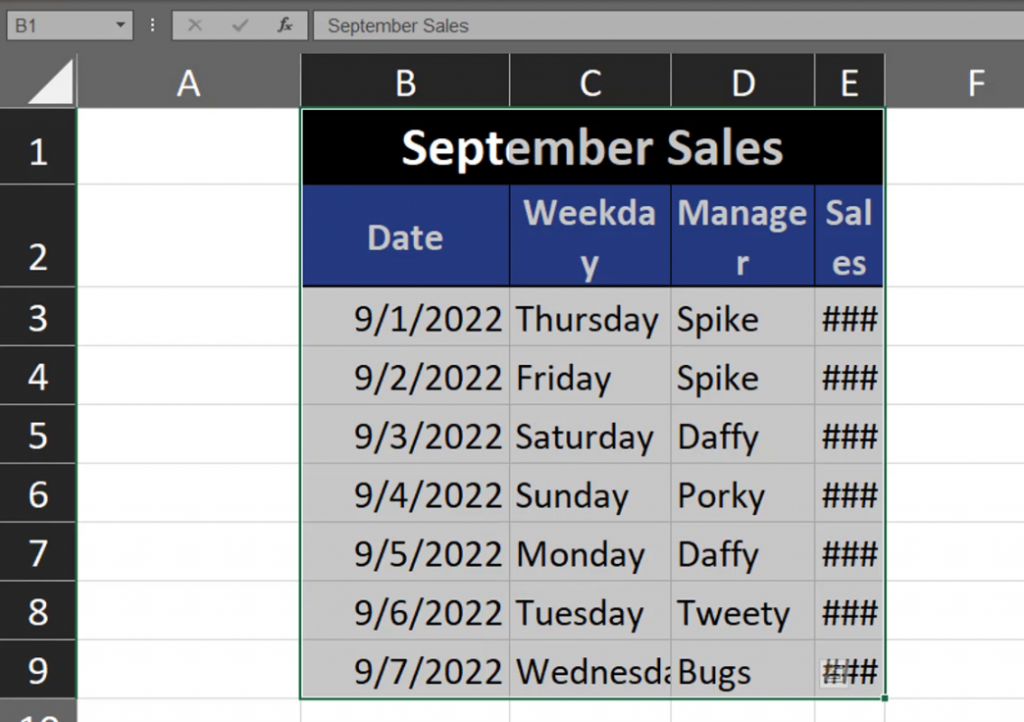
When we have the cell in the Center Across Selection mode, it’s also important that when we want to add some text to one of the cells, the Center Across Selection option will work only on the cells that are not filled (Fig. 10)
