
When we want to count the number of working hours in Excel, we have z problem with night shifts. Let’ start with a human approach and day shift.
In a day shift, the end time is larger that the start time, so we can just subtract one number from another (Fig. 1).
=(B2-A2)
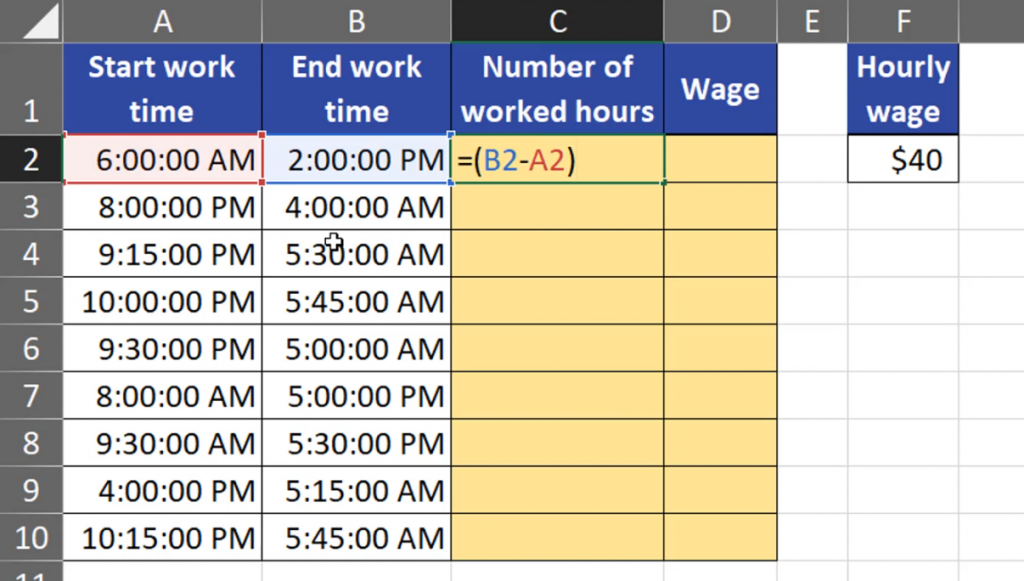
After entering and copying down, we can see we have proper results for day shifts. In night shifts, when the end time is smaller that the start time, it does’t show us any time, only hashtags. It happened so because Excel refused to show any negative dates or time. Even if Excel showed us negative results, they would be wrong (Fig. 2).

First, we have to remember that Excel stores time as numbers, i.e. the part of the day that has passed. When we look at the first hour, which is 8 am, it means that one-third of the day has passed. When we go to the Time bar, and press General, we can see that the time will be given in decimal numbers (Fig. 3), (Fig. 4).


When we want to convert Excel time into human time, we have to multiply it by 24 (Fig. 5).
=(B2-A2)*24

Now, we can see that the we can easily read the values. Remember to have the General option selected. There are negative values for the night shift. What’s more, they are wrong, as there are only 8 hours from 8 pm to 4 am in row number 3, not 16.

It means that this human approach won’t work in Excel, so let’ delete the results. What can work here is a function called MOD, which is also quite short. In the MOD function, we also use the human approach, which means that from the end time we subtract the start time. However, the MOD function needs a divisor, i.e. 1, which means that it is one whole day (Fig. 7)
=MOD(B2-A2,1)
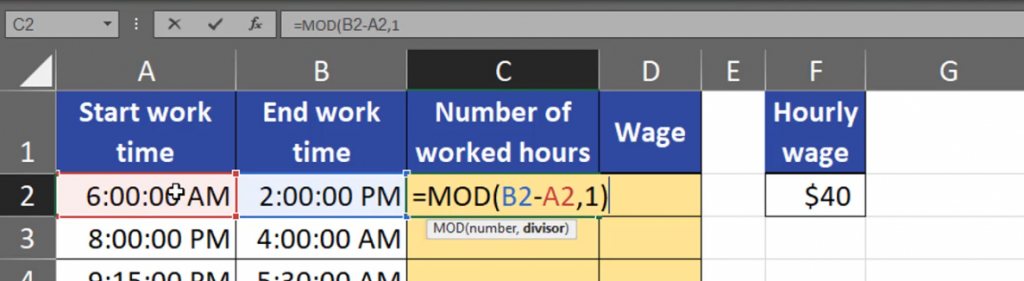
Now, we can see that our results in day and night shifts are correct. We can finally calculate the wages by multiplying the number of working hours by the hourly wage (Fig. 8).
=C2*$F$2

As we can see the results are wrong again. Let’s have a look at row number two. There are 8 hours, but Excel doesn’t multiply 8 hours times 40$, but one third of a day times 40$, which gives us around $13 (Fig. 9).
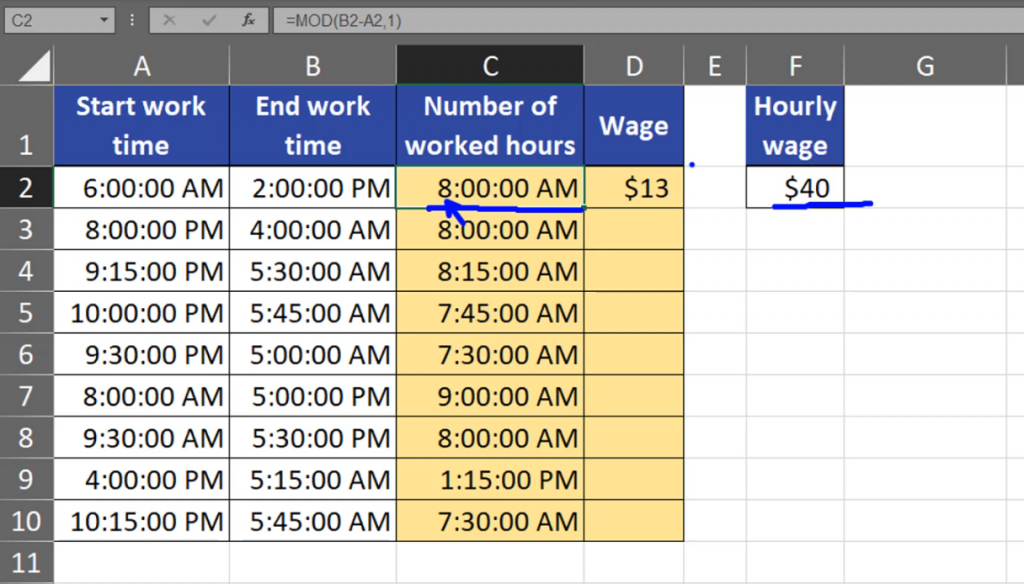
We want to have proper wages, so we need to multiply it by 24 hours (Fig. 10).
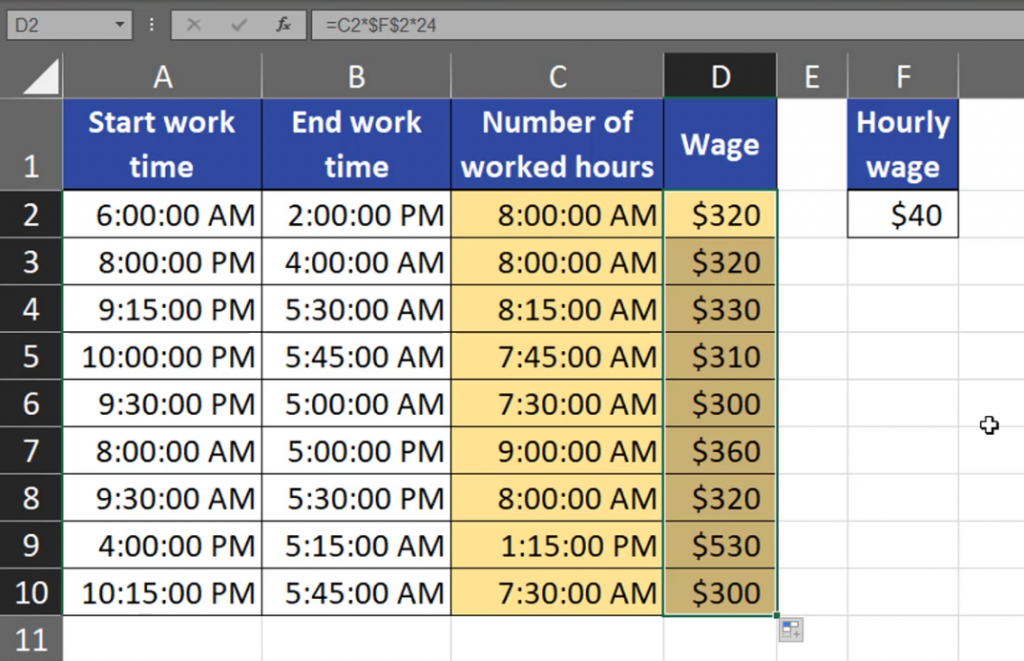
=C2*$F$2*24

Now, we have proper wages (Fig. 11).
If you don’t need precision bigger than 15 minutes, just use numbers instead of Excel time. I’m advising it to you from my own experience.