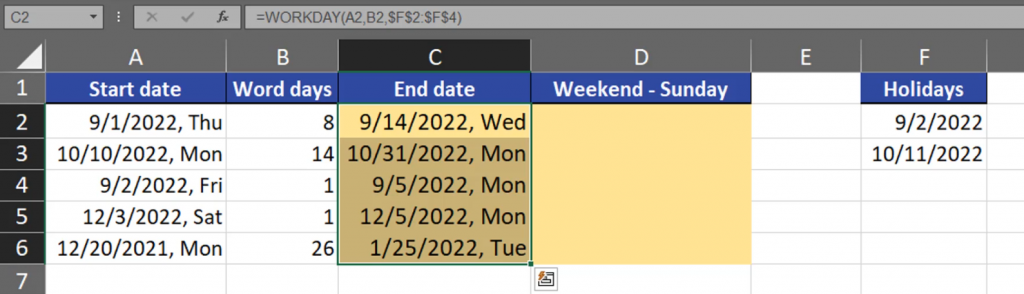
If you want to find a date after a certain number of workdays, you can use the WORKDAY function. You just need the start date and the number of working days (Fig. 1).

We can see that Excel shows the date after the corresponding number of working days. You have to remember that the WORKDAY function doesn’t consider the start date in its calculations. It means that if you have only one workday, you will go to the next working day (Fig. 2).

In the WORKDAY function, you can even add holidays by just selecting a range with proper dates. Remember to lock it (F4) (Fig. 3).

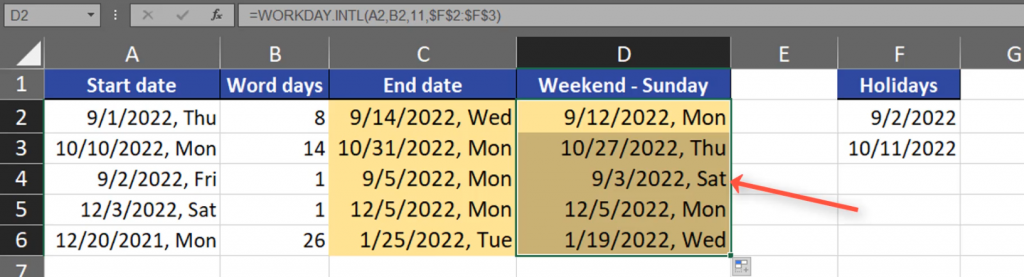
We can see that our dates are a bit changed (Fig. 4).
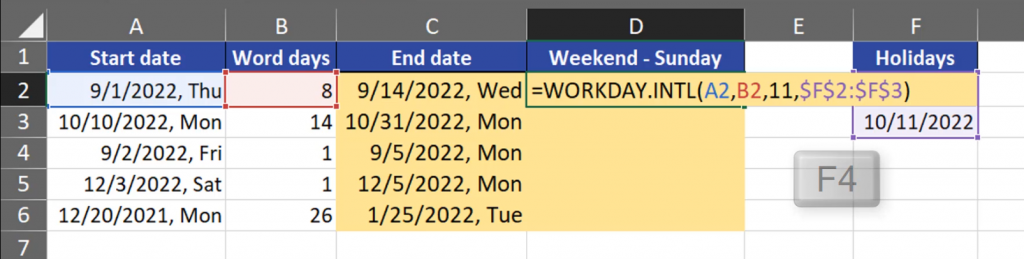
The WORKDAY function considers the weekend as Saturday and Sunday, which is correct in most of the countries, however we can modify it. When we want only Sunday to be our weekend, we have to choose the WEEKDAYS.INTL function. The function consists of the start date and the number of working days. The third argument is the weekend, where we can change the weekend days. Let’s choose Sunday (Fig. 5).

Then, we are choosing holidays by selecting a proper range and locking it (F4 key). Our formula is ready (Fig. 6).
=WORKDAY.INTL(A2,B2,11,$F$2:$F$3)
We can see that our results differ from the the previous ones because now Saturday is our working day (Fig. 7).