
When we want to count the number of working days between two dates we can use the NETWORKDAYS function. The function is very simple, as it needs only the start and end dates. And that’s it (Fig. 1).
=NETWORKDAYS(A2,B2)

And we have the numbers of working days between two dates. It’s important that the NETWORKDAYS function considers also the start and end days. If the start and end days are the same, the number will tell us whether the day is a working day or not (Fig. 2).

We can also add holidays to this function in the third argument. We just have to select a range with proper dates and press the F4 key to lock it (Fig. 3).
=NETWORKDAYS(A2,B2,$F$2:$F$3)
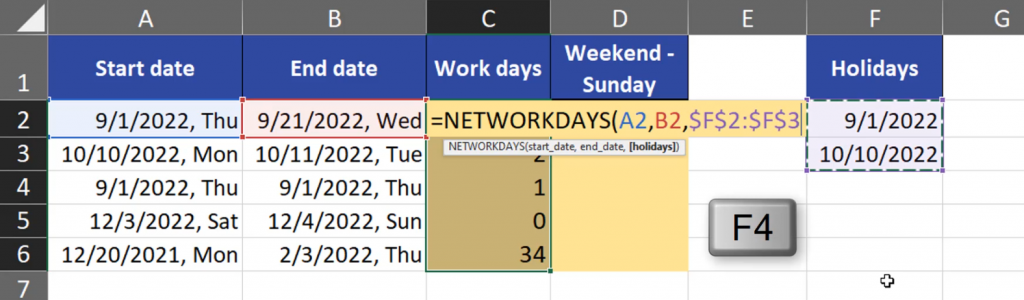
Now, we can see that the number of days changed due to those holidays (Fig. 4).
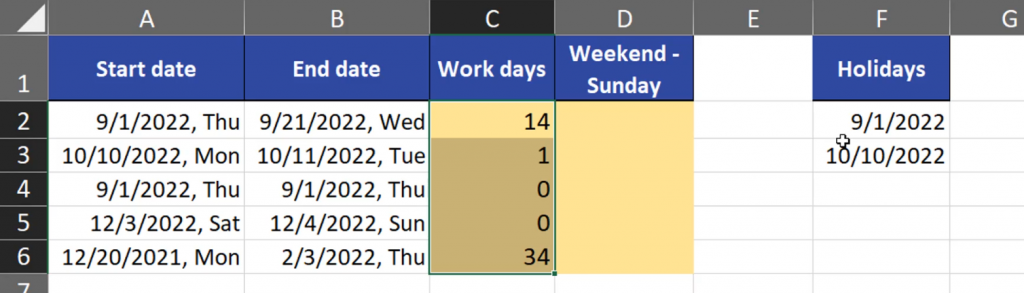
In the NETWORKDAYS function, the weekend is considered as Saturday and Sunday. However, we can modify it by using the NETWORKDAYS.INTL function. The syntax of those two functions is almost the same. Apart from the start and end day, we can choose what our weekend days will be. Let’s choose Sunday only (Fig. 5).
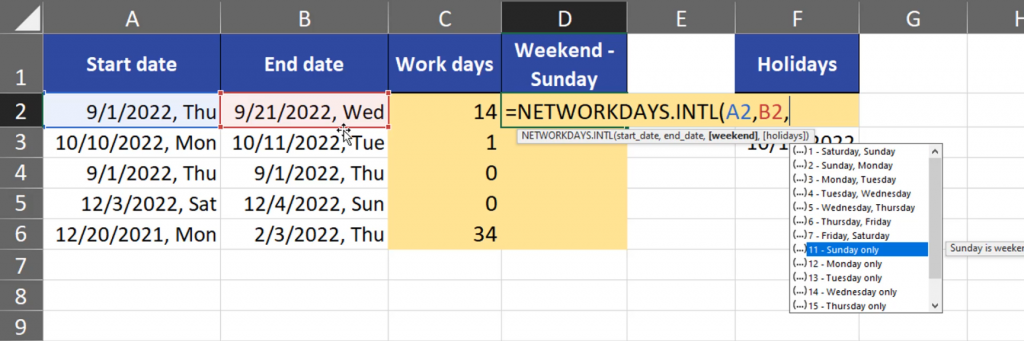
Then, we can add holidays if we want. Let’s select the proper holiday range and press the F4 key to lock it (Fig. 6).
=NETWORKDAYS.INTL(A2,B2,11,$F$2:$F$3)

And we have our results. We can see that the number of working days between the dates grew because Saturday is a working day (Fig. 7).
